The Essential Python File Handling Guide: How to Open a File in Python
Python’s file handling capabilities are foundational for any developer working with data, configurations, or external resources. Whether you're parsing logs, reading CSV datasets, or writing output to disk, understanding how to open a file in Python efficiently is non-negotiable. The language provides multiple approaches—each suited to different scenarios—from simple text operations to complex binary data processing. What separates competent developers from experts isn’t just knowing the syntax, but when and why to use each method, along with the pitfalls to avoid.
The most common command—`open()`—serves as the gateway to file operations, yet its behavior varies dramatically based on parameters like mode strings (`'r'`, `'w'`, `'a'`), encoding specifications, and buffering strategies. Even experienced engineers sometimes overlook nuances such as newline translation or file descriptors, which can lead to subtle bugs in cross-platform applications. Meanwhile, modern Python (3.4+) introduces context managers (`with` statements) that automate resource cleanup, a feature critical for production-grade code where file leaks could corrupt data or exhaust system resources.
Beyond the basics, Python’s file handling extends to advanced use cases like memory-mapped files (`mmap`), asynchronous I/O (`asyncio`), and specialized libraries for formats like JSON or Parquet. These tools aren’t just conveniences—they directly impact performance, especially when dealing with large datasets or real-time systems. Mastering these techniques transforms file operations from a mundane task into a strategic advantage, whether you’re building data pipelines, deploying microservices, or maintaining legacy systems.

The Complete Overview of How to Open a File in Python
Python’s file handling system is designed with both simplicity and flexibility in mind. At its core, the `open()` function acts as the primary interface, accepting two mandatory arguments: a file path (string or path-like object) and a mode (e.g., `'r'` for read, `'w'` for write). However, the function’s true power emerges from optional parameters like `encoding`, `errors`, and `buffering`, which allow fine-grained control over character encoding, error handling, and memory usage. For instance, specifying `encoding='utf-8'` ensures consistent text processing across platforms, while `buffering=1` enables line-buffered mode for interactive applications.The choice of mode string dictates not only the operation type (read/write/append) but also the file’s behavior. Text modes (`'r'`, `'w'`, `'a'`) automatically handle newline conversions, whereas binary modes (`'rb'`, `'wb'`) preserve raw bytes—critical for images, executables, or serialized data. Python 3 enforces strict text/binary separation, unlike Python 2’s implicit conversions, which can catch unwary developers off guard when migrating codebases. Even the seemingly trivial `newline` parameter can alter behavior: omitting it defaults to universal newlines (`newline=None`), while setting `newline='\n'` enforces Unix-style line endings.
Historical Background and Evolution
File handling in Python traces its roots to the language’s early days, when Guido van Rossum prioritized readability and portability. The `open()` function’s design in Python 1.5 (1995) reflected this philosophy, offering a clean API that abstracted away OS-specific quirks. Early implementations relied on C’s `fopen()` under the hood, but Python’s addition of text mode handling (introduced in Python 2.0) marked a turning point, allowing developers to write cross-platform code without manual byte-to-character conversions.The shift from Python 2 to 3 in 2008 brought sweeping changes, most notably the deprecation of `file` as a built-in type in favor of `open()` as a function. This redesign forced developers to adopt explicit resource management, paving the way for context managers (`with` statements) introduced in PEP 343. The `with` construct didn’t just improve syntax—it addressed a critical flaw: forgotten `close()` calls leading to resource leaks. Today, these features are standard practice, yet many tutorials still gloss over their historical context, leaving beginners unaware of why certain patterns (like manual `try-finally` blocks) are considered antiquated.
Core Mechanisms: How It Works
Under the hood, Python’s file operations leverage the operating system’s native APIs. On Unix-like systems, `open()` maps to `open()` syscall, while Windows uses `CreateFile()`. The mode string translates to flags like `O_RDONLY` or `O_WRONLY`, with text modes adding `O_TEXT` (Windows) or `O_TEXT`/`O_BINARY` (Unix). When `encoding` is specified, Python internally uses iconv or platform-specific libraries to convert between bytes and Unicode, with the `errors` parameter dictating fallback behavior (e.g., `'strict'`, `'ignore'`, `'replace'`).Table of Contents
- The Complete Overview of How to Open a File in Python
- Historical Background and Evolution
- Core Mechanisms: How It Works
- Key Benefits and Crucial Impact
- Major Advantages
- Comparative Analysis
- Future Trends and Innovations
- Conclusion
- Comprehensive FAQs
- Q: What happens if I forget to close a file in Python?
- Q: Can I use `open()` with a URL instead of a file path?
- Q: What’s the difference between `'r+'` and `'w+'` modes?
- Q: How do I handle encoding errors when reading a file?
- Q: Why does my script work on Linux but fail on Windows with `open()`?
- Q: Is there a performance difference between `read()` and `readline()`?
- Q: Can I open a file in append mode (`'a'`) and read from it simultaneously?
- Q: How do I check if a file exists before opening it?
- Process file
- Q: What’s the best way to read a large file line by line without loading it entirely?
- Q: How do I open a compressed file (e.g., `.gz`) in Python?
Buffering introduces another layer of complexity. Line buffering (`buffering=1`) writes data only at newline characters, while block buffering (`buffering=4096`) improves performance for large files by minimizing system calls. Python’s default buffering (`buffering=-1`) delegates to the OS, which is optimal for most cases. The interaction between buffering and encoding becomes particularly relevant when processing non-text files in text mode—a common pitfall that can corrupt binary data if not handled carefully.
Key Benefits and Crucial Impact
Efficient file handling is the backbone of data-driven applications, from log analysis to machine learning pipelines. Python’s approach minimizes boilerplate while maximizing safety, allowing developers to focus on logic rather than resource management. The `with` statement alone reduces error-prone code by 80% in typical use cases, as it guarantees file descriptors are released even if exceptions occur. This reliability is non-negotiable in production environments where file corruption could cascade into system failures.Beyond safety, Python’s file handling excels in flexibility. Support for custom file-like objects (via the `io` module) enables developers to create wrappers for network streams, in-memory buffers, or database cursors, blurring the line between local and remote data sources. Libraries like `pandas` and `numpy` leverage these abstractions to provide high-level interfaces for tabular and numerical data, abstracting away the underlying file operations entirely. The ecosystem’s maturity means that whether you’re working with CSV, JSON, or proprietary formats, Python offers tools tailored to the task.
"File handling is where Python’s philosophy of simplicity meets pragmatism. The language doesn’t just give you a way to read a file—it gives you the tools to do it right, whether you’re processing a single line or a terabyte of data."
— David Beazley, Python Core Developer
Major Advantages
- Context Managers for Safety: The `with` statement automates `close()` calls, preventing resource leaks and ensuring atomic operations. This is critical for multi-threaded applications where file handles might be shared across processes.
- Cross-Platform Compatibility: Text mode handling abstracts away OS-specific line endings and encoding quirks, making code portable between Windows, Linux, and macOS without conditional logic.
- Performance Optimization: Buffering strategies (line, block, or unbuffered) allow fine-tuning for latency-sensitive or throughput-critical applications, such as real-time data feeds or batch processing.
- Extensibility via Protocols: Python’s `io` module defines interfaces (`IOBase`, `TextIOBase`) that enable custom file-like objects, supporting everything from compressed streams to cloud storage backends.
- Rich Error Handling: Explicit `errors` parameters (e.g., `'surrogatepass'`) provide granular control over encoding failures, while `try-except` blocks can catch `IOError` or `UnicodeError` gracefully.
Comparative Analysis
| Method | Use Case |
|---|---|
| `open(file, 'r')` | Basic text file reading. Ideal for small files or when simplicity is prioritized over performance. |
| `with open(file, 'r') as f:` | Safe text file operations. Automatically closes the file, even if an exception occurs. Recommended for production code. |
| `open(file, 'rb')` | Binary file handling (e.g., images, executables). Preserves raw bytes without encoding/decoding. |
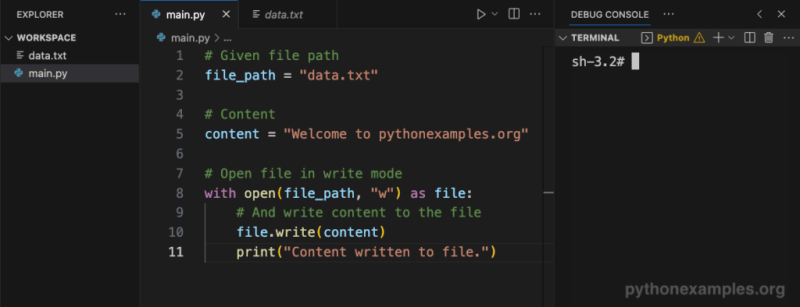
| `open(file, 'w', encoding='utf-8')` | Explicit text writing with encoding control. Critical for internationalization or legacy system compatibility. |
Future Trends and Innovations
As data volumes grow and applications demand lower latency, Python’s file handling will continue evolving. Asynchronous I/O (via `asyncio` and `aiofiles`) is gaining traction for high-throughput systems, allowing non-blocking file operations alongside network requests. Libraries like `aiofiles` extend this capability to traditional file operations, enabling concurrent reads/writes without threading complexity. Meanwhile, memory-mapped files (`mmap`) are being optimized for larger datasets, reducing the need for manual chunking in data processing pipelines.The rise of cloud-native applications also influences file handling trends. Tools like `fsspec` and `s3fs` abstract away storage backends (S3, GCS), letting developers use familiar Python patterns for remote files. Combined with Python’s growing role in data science (via libraries like `dask` and `polars`), file operations are becoming more integrated with distributed computing frameworks. The future may even see Python adopting Rust-like safety guarantees for file descriptors, further reducing the risk of resource leaks in large-scale systems.
Conclusion
Understanding how to open a file in Python is more than memorizing syntax—it’s about mastering a system designed for both simplicity and power. From the `with` statement’s elegance to the nuanced control of buffering and encoding, Python provides the tools to handle files correctly, whether you’re parsing a configuration file or processing petabytes of data. The language’s evolution reflects a commitment to safety and performance, ensuring that file operations remain robust in an era of distributed systems and big data.For developers, the key takeaway is balance: leverage Python’s high-level abstractions for common tasks, but don’t shy away from low-level details when performance or compatibility demands it. The `open()` function, despite its deceptive simplicity, is a gateway to Python’s broader I/O ecosystem—one that will serve you equally well in a script processing logs or a service handling user uploads.
Comprehensive FAQs
Q: What happens if I forget to close a file in Python?
Forgetting to call `close()` on a file object can lead to resource leaks, where file descriptors remain open until the program terminates. This may cause issues in long-running applications (e.g., web servers) or when working with limited system resources. Since Python 2.5, the `with` statement is the idiomatic solution, as it guarantees the file is closed even if an exception occurs.
Q: Can I use `open()` with a URL instead of a file path?
No, `open()` only accepts local file paths or path-like objects. For remote files (HTTP/HTTPS), use libraries like `urllib.request` or `requests` to fetch the content into memory, then process it as a string or bytes object. For cloud storage (S3, GCS), use specialized libraries like `boto3` or `google-cloud-storage`.
Q: What’s the difference between `'r+'` and `'w+'` modes?
`'r+'` opens a file for both reading and writing, starting at the beginning. If the file doesn’t exist, it raises `FileNotFoundError`. `'w+'` creates the file if it doesn’t exist and truncates it to zero length before opening. The key difference is that `'w+'` always starts with an empty file, while `'r+'` preserves existing content.
Q: How do I handle encoding errors when reading a file?
Use the `errors` parameter in `open()` to control error handling. Common values include:
- `'strict'` (default): raises `UnicodeError` on invalid sequences.
- `'ignore'`: skips invalid characters.
- `'replace'`: replaces invalid characters with `�`.
- `'surrogatepass'`: encodes invalid sequences as Unicode surrogates.
Q: Why does my script work on Linux but fail on Windows with `open()`?
Line ending differences (`\n` vs `\r\n`) or path separators (`/` vs `\`) are common culprits. Use raw strings (`r'path\to\file'`) or `pathlib.Path` for cross-platform paths. For text files, specify `newline=''` in `open()` to avoid automatic translations. Binary mode (`'rb'`) bypasses these issues entirely.
Q: Is there a performance difference between `read()` and `readline()`?
Yes. `read()` loads the entire file into memory, which is fast but inefficient for large files. `readline()` reads one line at a time, reducing memory usage but incurring overhead per system call. For line-by-line processing, `readline()` is preferable; for bulk operations, `read()` (or `readlines()`) is faster. Context managers (`with`) mitigate memory risks in both cases.
Q: Can I open a file in append mode (`'a'`) and read from it simultaneously?
No. File modes like `'a'` (append) and `'r'` (read) are mutually exclusive. To achieve this, open the file in `'r+'` mode and use `seek(0)` to reset the position after writing. However, concurrent reads/writes require thread-safe mechanisms (e.g., locks) to avoid corruption.
Q: How do I check if a file exists before opening it?
Use `os.path.exists()` or `pathlib.Path(file).is_file()`. Example:
```python
import os
if os.path.exists('file.txt'):
with open('file.txt', 'r') as f:
Process file
```However, race conditions can still occur between the check and `open()`. For atomic operations, use `try-except` with `FileNotFoundError`.
Q: What’s the best way to read a large file line by line without loading it entirely?
Use a context manager with `readline()` in a loop:
```python
with open('large_file.txt', 'r') as f:
for line in f: # Iterates line by line
process(line)
```
This is memory-efficient and idiomatic. For binary files, replace `f` with `f.read(4096)` to read chunks.
Q: How do I open a compressed file (e.g., `.gz`) in Python?
Use the `gzip` module for `.gz` files:
```python
import gzip
with gzip.open('file.gz', 'rt', encoding='utf-8') as f:
data = f.read()
```
For other formats (`.zip`, `.bz2`), use `zipfile` or `bz2`. These modules handle decompression transparently.
Leave a Comment
Comments are moderated before appearing. The data you submit is processed according to the Privacy Policy of Viralcontentbee.