The Definitive Guide to How to Run PowerShell Scripts Like a Pro
PowerShell isn’t just another scripting language—it’s a Swiss Army knife for Windows systems, blending .NET integration with administrative superpowers. The ability to execute PowerShell scripts efficiently separates novices from power users. Whether you’re deploying enterprise policies, parsing logs, or automating repetitive tasks, understanding how to run PowerShell scripts is non-negotiable.
The syntax may look intimidating at first glance, but the real challenge lies in execution: permissions, contexts, and environment variables all play critical roles. A misplaced `-ExecutionPolicy` flag or a missing profile can derail even the most meticulously written script. The difference between a script that runs flawlessly and one that fails silently often comes down to these overlooked details.
Many assume running PowerShell scripts is as simple as double-clicking a `.ps1` file, but the reality is far more nuanced. Execution paths vary by user rights, system configuration, and even the version of PowerShell in use. What works in a domain-joined enterprise environment may break in a local workstation setup, forcing administrators to adapt their approach dynamically.

The Complete Overview of How to Run PowerShell Scripts
PowerShell scripts are the backbone of modern Windows administration, offering a bridge between manual tasks and full automation. At its core, PowerShell is a task-based command-line shell designed for system management, but its scripting capabilities extend far beyond basic commands. The language’s object-based pipeline and deep integration with Windows APIs make it indispensable for IT professionals, DevOps engineers, and security analysts alike.The execution process itself is deceptively simple on the surface—open a terminal, type a command, and watch the magic happen. However, beneath this simplicity lies a layered system of security policies, execution contexts, and runtime environments. For example, a script that runs seamlessly in an elevated (admin) session may throw access errors in a standard user context. Understanding these layers is the first step in mastering how to run PowerShell scripts effectively.
Historical Background and Evolution
PowerShell’s origins trace back to 2006, when Microsoft released it as a replacement for legacy scripting tools like VBScript and batch files. Built on the .NET Framework, it was designed to address the limitations of previous Windows automation methods—namely, their lack of object manipulation and poor integration with modern APIs. Over the years, PowerShell evolved from a niche administrative tool to a cross-platform powerhouse, with versions 5.1 and 7+ (now PowerShell Core) redefining its capabilities.The shift to open-source in PowerShell 6.0 marked a turning point, allowing it to run on Linux and macOS while maintaining backward compatibility with Windows. This cross-platform support expanded the language’s use cases beyond traditional Windows administration, making it a staple in cloud infrastructure, CI/CD pipelines, and even embedded systems. Today, knowing how to run PowerShell scripts isn’t just about Windows—it’s about leveraging a tool that operates seamlessly across hybrid environments.
Core Mechanisms: How It Works
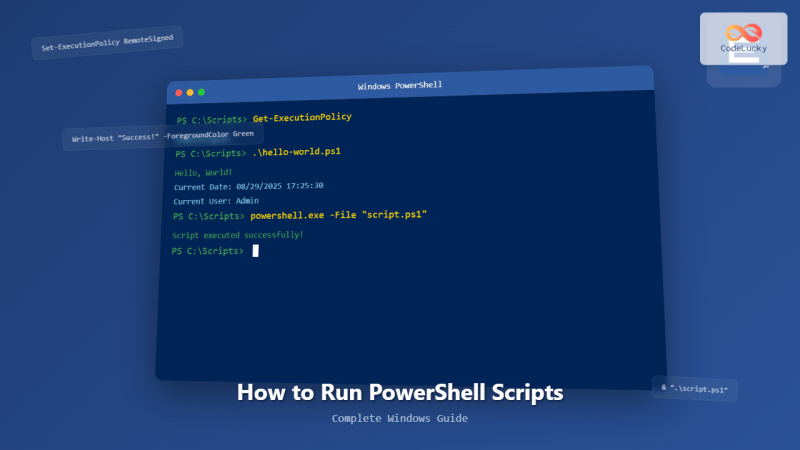
Under the hood, PowerShell scripts are executed by the `powershell.exe` host process, which interprets commands and manages the runtime environment. When you run a script, PowerShell follows a strict execution policy (e.g., `Restricted`, `AllSigned`, `RemoteSigned`) that determines whether scripts are allowed to run at all. These policies are set at the machine, user, or scope level, and bypassing them improperly can trigger security alerts or outright block execution.Table of Contents
- The Complete Overview of How to Run PowerShell Scripts
- Historical Background and Evolution
- Core Mechanisms: How It Works
- Key Benefits and Crucial Impact
- Major Advantages
- Comparative Analysis
- Future Trends and Innovations
- Conclusion
- Comprehensive FAQs
- Q: Why does my PowerShell script fail with "File cannot be loaded because running scripts is disabled"?
- Q: How do I run a PowerShell script silently (without a console window)?
- Q: Can I run PowerShell scripts in Azure Automation or GitHub Actions?
- Q: What’s the difference between `.ps1` and `.psm1` files?
- Q: How do I debug a PowerShell script that runs fine manually but fails in a scheduled task?
- Q: Are there performance differences between PowerShell 5.1 and 7+?
- Q: How can I sign a PowerShell script to bypass execution policy restrictions?
- Q: What’s the best way to document and share PowerShell scripts?
- Q: Can PowerShell scripts interact with non-Windows systems (Linux/macOS)?
- Q: How do I handle errors gracefully in a PowerShell script?
The actual runtime involves several stages: script loading, variable initialization, command parsing, and error handling. For instance, a script calling `Get-Process` will first resolve the cmdlet, then fetch process data from the Windows API, and finally output the results in an object format. This object-based pipeline is PowerShell’s defining feature, enabling complex data manipulation without intermediate parsing steps. Understanding these mechanics is crucial when debugging scripts that fail silently or produce unexpected output.
Key Benefits and Crucial Impact
PowerShell scripts eliminate the tedium of manual processes, replacing hours of repetitive work with lines of reusable code. In enterprise environments, this translates to faster deployments, fewer human errors, and consistent outcomes across thousands of machines. The language’s ability to interact with Active Directory, Azure, and third-party APIs further amplifies its value, making it a cornerstone of modern IT operations.Beyond efficiency, PowerShell enhances security through granular access controls and audit logging. Scripts can enforce compliance policies, monitor for anomalies, and even automate remediation tasks—reducing the attack surface by minimizing human intervention. The impact isn’t just technical; it’s operational, shifting teams from reactive firefighting to proactive management.
"PowerShell isn’t just a tool; it’s a paradigm shift in how we think about system administration. The ability to run scripts at scale changes the game entirely." — Microsoft’s PowerShell Team (2023)
Major Advantages
- Cross-Platform Compatibility: PowerShell Core (7+) runs on Windows, Linux, and macOS, making it ideal for hybrid cloud and DevOps workflows.
- Deep Windows Integration: Native cmdlets for Active Directory, Group Policy, and WMI provide unmatched administrative control.
- Object-Oriented Pipeline: Commands output structured data that can be piped, filtered, and manipulated without conversion.
- Security and Compliance: Execution policies, digital signatures, and logging ensure scripts meet organizational security standards.
- Community and Ecosystem: Thousands of modules (e.g., Posh-SSH, AzureRM) extend functionality for niche use cases.

Comparative Analysis
| PowerShell | Alternatives (Bash, Python, etc.) |
|---|---|
| Native Windows integration (WMI, COM, .NET) | Requires third-party libraries (e.g., PyWin32 for Python) |
| Object-based pipeline for complex data flows | String-based output (unless using custom objects) |
| Execution policies enforce security by default | Security relies on manual checks (e.g., `set -e` in Bash) |
| Cross-platform in PowerShell 7+ (but optimized for Windows) | Native support across all OSes (e.g., Bash on Linux) |
Future Trends and Innovations
The future of PowerShell scripting lies in its integration with cloud-native tools and AI-driven automation. Microsoft’s push toward PowerShell in Azure Arc and GitHub Actions signals a shift toward unified management across on-premises and cloud environments. Meanwhile, advancements in Just-In-Time (JIT) compilation and performance optimizations (e.g., `System.Management.Automation` improvements) are making scripts faster and more efficient.Emerging trends also include tighter integration with Kubernetes and container orchestration, as well as AI-assisted scripting—where tools like GitHub Copilot suggest PowerShell snippets based on context. For administrators, this means scripts will become more dynamic, adaptive, and self-healing, reducing the need for manual intervention.
Conclusion
Mastering how to run PowerShell scripts is about more than memorizing commands—it’s about understanding the ecosystem around them. From execution policies to cross-platform deployment, each layer presents opportunities to optimize workflows and enhance security. The scripts you write today may evolve into automated pipelines tomorrow, but the foundational knowledge remains the same: respect the context, validate the environment, and test rigorously.For those just starting, begin with simple scripts in an isolated sandbox, then gradually explore advanced modules and security features. The payoff—fewer manual errors, faster deployments, and greater control—is well worth the investment.
Comprehensive FAQs
Q: Why does my PowerShell script fail with "File cannot be loaded because running scripts is disabled"?
A: This error occurs due to the execution policy. Run `Set-ExecutionPolicy RemoteSigned -Scope CurrentUser` (temporarily) or `Unblock-File` on the script if downloaded from the internet. For enterprise environments, adjust group policies via `gpedit.msc` under "Turn on Script Execution".
Q: How do I run a PowerShell script silently (without a console window)?
A: Use `Start-Process powershell.exe -FilePath "script.ps1" -WindowStyle Hidden` for GUI apps or `powershell.exe -WindowStyle Hidden -File script.ps1` from CMD. Note: Hidden windows may bypass logging; use `-NoProfile` for cleaner execution.
Q: Can I run PowerShell scripts in Azure Automation or GitHub Actions?
A: Yes. In Azure Automation, upload the script as a runbook (PowerShell Workflow or PS5.1). In GitHub Actions, use the `powershell` step with a self-hosted runner or Azure VM. Both require proper credential handling (e.g., `AzureRm` modules for Azure).
Q: What’s the difference between `.ps1` and `.psm1` files?
A: `.ps1` are executable scripts, while `.psm1` are module manifest files (metadata + functions). Modules (`.psm1`) are reusable libraries; scripts (`.ps1`) are standalone commands. Load modules with `Import-Module Name` or dot-sourcing: `. .\module.psm1`.
Q: How do I debug a PowerShell script that runs fine manually but fails in a scheduled task?
A: Check the task’s action settings for the correct working directory and script path. Use `-NoProfile` to avoid loading user-specific configs. Log errors with `Start-Transcript` or redirect output: `script.ps1 2>&1 | Out-File error.log`. Test with `schtasks /run /tn TaskName` to simulate the environment.
Q: Are there performance differences between PowerShell 5.1 and 7+?
A: Yes. PowerShell 7+ uses .NET Core (cross-platform) and offers JIT compilation, making it ~2-3x faster for CPU-bound tasks. However, 5.1 has deeper Windows integration (e.g., WMI, COM). For new projects, prefer 7+; for legacy systems, stick with 5.1 unless compatibility isn’t an issue.
Q: How can I sign a PowerShell script to bypass execution policy restrictions?
A: Use `New-SelfSignedCertificate` to generate a cert, then sign the script with `Set-AuthenticodeSignature -FilePath script.ps1 -Certificate (Get-ChildItem Cert:\CurrentUser\My\...)`. Requires `PSScriptPolicy` set to `AllSigned` or `RemoteSigned`. For enterprise, use a CA-signed cert via `New-Item -Path Cert:\LocalMachine\My -CodeSigning`.
Q: What’s the best way to document and share PowerShell scripts?
A: Use comment-based help (`<# .SYNOPSIS #>` tags) and export to `.help.xml` with `Update-Help`. For sharing, package scripts in modules with `.psd1` manifests. GitHub/GitLab are ideal for version control; include a `README.md` with usage examples and dependencies (e.g., `Requires -Modules Posh-SSH`).
Q: Can PowerShell scripts interact with non-Windows systems (Linux/macOS)?
A: Yes, via PowerShell 7+. Use `Invoke-Command` with SSH (`-ComputerName` + `-Credential`), or install modules like `Posh-SSH` for advanced sessions. For APIs, leverage `Invoke-RestMethod` or `System.Net.Http`. Example: `Invoke-Command -ComputerName linux-server -ScriptBlock { ls /tmp } -Credential (New-Object System.Management.Automation.PSCredential "user", (ConvertTo-SecureString "pass" -AsPlainText -Force))`.
Q: How do I handle errors gracefully in a PowerShell script?
A: Use `try/catch/finally` blocks. Log errors with `Write-Error` or `Out-File`. For example:
```powershell
try {
Get-Process -Name "NonExistentApp"
Write-Host "Process found."
} catch {
Write-Error "Failed: $_"
Exit 1
} finally {
Write-Host "Cleanup complete."
}
```
Combine with `-ErrorAction Stop` for cmdlets and `$ErrorActionPreference = 'Stop'` for script-wide handling.
Leave a Comment
Comments are moderated before appearing. The data you submit is processed according to the Privacy Policy of Viralcontentbee.