How to Adjust Mouse Sensitivity: Precision Tuning for Performance
The first time a competitive FPS player realizes their crosshair isn’t tracking where they think it should, the frustration is immediate. That tiny mismatch between intention and execution—often traced back to improper mouse sensitivity—can cost milliseconds in critical moments. Yet adjusting it isn’t just for esports; graphic designers, CAD operators, and even casual users tweak these settings daily to avoid wrist strain or improve workflow efficiency. The problem? Most guides oversimplify the process, treating sensitivity as a single slider when it’s actually a delicate interplay of hardware, software, and biomechanics.
What separates a smooth, intuitive mouse movement from one that feels sluggish or erratic? The answer lies in understanding the distinction between DPI (dots per inch) and in-game sensitivity—a confusion that plagues even experienced users. A high DPI setting might feel "fast" in raw cursor movement, but without proper scaling in your game’s controls, your aim will either lag behind your brain’s prediction or overshoot targets unpredictably. The same principle applies to productivity tasks: a designer with a 1600 DPI mouse might need a sensitivity of 0.2 to prevent hand cramps from rapid cursor jumps, while a gamer might require 8.0 to maintain fluidity in fast-paced matches.
The irony is that the tools we rely on daily—mice designed for precision—often come with default settings that prioritize "out-of-the-box usability" over specialized performance. Manufacturers like Logitech or Razer provide presets, but these rarely account for individual grip styles (palm, claw, fingertip), desk space constraints, or even the curvature of your fingers. The result? Users either stick with suboptimal settings or spend hours trial-and-error testing values that might not even be the issue—because the real problem is often how those settings interact with your body’s motor memory.

The Complete Overview of How to Adjust Mouse Sensitivity
Mouse sensitivity isn’t just about making your cursor move faster or slower; it’s about aligning your peripheral input with your brain’s spatial awareness. The process begins with recognizing that sensitivity is a ratio—the relationship between physical mouse movement and on-screen action. This ratio is influenced by three primary factors: hardware DPI, software scaling (e.g., Windows sensitivity or game-specific sliders), and your grip technique. Ignore any one of these, and you’ll end up chasing a moving target, literally. For example, a fingertip grip user might require a lower in-game sensitivity than a palm gripper because their wrist contributes less to the movement, relying more on finger articulation.The confusion deepens when users conflate DPI with sensitivity. DPI determines how many pixels your cursor moves per inch of physical mouse travel, but it’s the scaling of that DPI (often set in Windows or game controls) that translates raw hardware movement into usable on-screen commands. A 1600 DPI mouse set to 400% scaling in Windows will feel drastically different than the same mouse at 100% scaling—even though the DPI hasn’t changed. This is why professional gamers often use lower DPI settings (800–1600) paired with high in-game sensitivity: they’re optimizing for consistency in their muscle memory, not raw speed.
Historical Background and Evolution
The concept of mouse sensitivity adjustment traces back to the early 1980s, when the first computer mice were introduced alongside graphical user interfaces. Early systems like the Apple Macintosh (1984) used a single mechanical ball mouse with fixed resolution, leaving sensitivity as a manual calculation in software. Users had to account for screen resolution and desk space, often resorting to tape measures to ensure consistent cursor movement. By the 1990s, optical mice replaced mechanical models, introducing DPI as a hardware specification—but software still lacked granular control. Games like Quake (1996) popularized the idea of in-game sensitivity sliders, forcing players to reconcile hardware limitations with gameplay demands.The turning point came in the early 2000s with the rise of competitive FPS titles like Counter-Strike and Call of Duty. Players began demanding mice with adjustable DPI (e.g., Logitech’s MX series) and software like Logitech’s SetPoint to fine-tune profiles. This era also saw the birth of "low-sensitivity, high-DPI" strategies, where gamers prioritized precision over raw speed—a shift that persists today. Meanwhile, productivity users faced their own challenges: designers and video editors needed stable, predictable cursor movement, leading to the development of tools like Steam Input or X-Mouse for macro-level adjustments.
Core Mechanisms: How It Works
At its core, mouse sensitivity adjustment hinges on two technical layers: hardware and software. The hardware layer involves the mouse’s sensor (optical or laser) and its DPI setting, which dictates how many pixels the cursor moves per inch of physical travel. A 400 DPI mouse moves the cursor 400 pixels for every inch you slide it; a 1600 DPI mouse moves it 1600 pixels in the same distance. However, this raw value is rarely used directly in games or applications. Instead, most systems apply a scaling factor—a percentage or multiplier—that reduces the DPI to a more manageable range for specific tasks.Table of Contents
- The Complete Overview of How to Adjust Mouse Sensitivity
- Historical Background and Evolution
- Core Mechanisms: How It Works
- Key Benefits and Crucial Impact
- Major Advantages
- Comparative Analysis
- Future Trends and Innovations
- Conclusion
- Comprehensive FAQs
- Q: Why does my mouse feel "jittery" at high sensitivity?
- Q: Should I use a high DPI with low in-game sensitivity or vice versa?
- Q: How do I calibrate my mouse for a 4K monitor? A: On a 4K monitor, cursor movement is more precise but can feel sluggish if not adjusted. Start by setting your Windows scaling to 100% (or 125% if you prefer slightly larger cursors). Then, reduce your DPI to 800–1200 and adjust in-game sensitivity to a value that feels natural for your grip style. Test at arm’s length to simulate real-world usage—what feels fast at your desk might be too slow when reaching across the monitor. Q: Can I use the same sensitivity settings across multiple games?
- Q: What’s the best grip style for adjusting mouse sensitivity?
- Q: How often should I recalibrate my mouse settings?
- Q: Are there tools to help me find the right sensitivity?
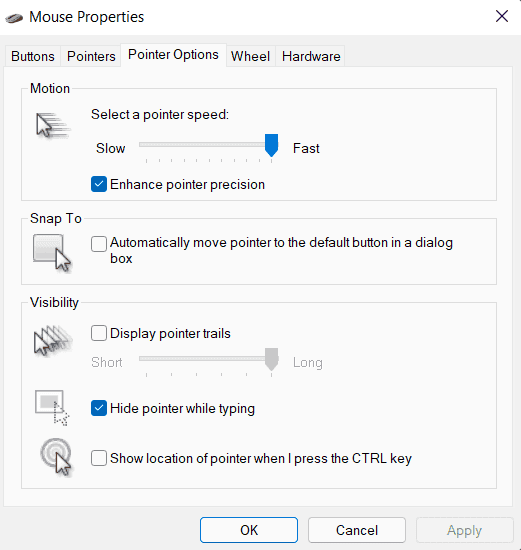
The software layer is where the magic (or frustration) happens. Operating systems like Windows apply their own scaling (e.g., "Pointer Speed" in Settings), which can amplify or dampen the hardware DPI before it reaches applications. Games, meanwhile, often use a separate sensitivity slider that further modifies the input. For instance, a 1600 DPI mouse set to 200% scaling in Windows and a sensitivity of 2.0 in CS2 might result in a net movement of ~640 pixels per inch (1600 × 200% × 2.0). The challenge is that these layers compound, making it easy to misdiagnose the root cause of tracking issues. A player might blame their mouse for "feeling slow" when the real culprit is an uncalibrated monitor or an outdated driver.
Key Benefits and Crucial Impact
Adjusting mouse sensitivity isn’t just about tweaking numbers—it’s about optimizing a critical interface between your body and the digital world. For gamers, the difference between a well-tuned setup and a default one can mean the difference between a clutch headshot and a missed opportunity. In productivity, it translates to fewer errors in design work, smoother navigation in code editors, and reduced physical strain from overcompensating with wrist movements. Even in everyday tasks like browsing or video editing, proper sensitivity settings can cut down on repetitive stress injuries by minimizing abrupt cursor jumps that force corrective hand movements.The psychological impact is often underestimated. A poorly calibrated mouse creates a disconnect between intention and action, forcing your brain to recalibrate constantly—a phenomenon known as "input lag" in cognitive terms. This mental strain can lead to fatigue, especially in high-stakes environments like esports or professional graphic design. Conversely, a finely tuned setup becomes an extension of your body, reducing cognitive load and allowing you to focus on the task at hand rather than the tool.
"The best mouse settings are invisible—they disappear into the workflow, leaving only the result." — Esports analyst and ergonomics specialist, Dr. Elena Voss
Major Advantages
- Improved Accuracy: Proper sensitivity reduces overshooting or undershooting, critical in games like Valorant or Overwatch where precision matters more than raw speed.
- Reduced Physical Strain: Lower, well-scaled sensitivity minimizes wrist flicking, lowering the risk of repetitive stress injuries (RSI) during long sessions.
- Consistent Performance: Stable settings allow muscle memory to develop without interference from erratic cursor behavior.
- Adaptability Across Tasks: Profiles can be switched for gaming, design, or browsing, ensuring optimal performance in every context.
- Future-Proofing: Understanding the mechanics of sensitivity adjustment makes it easier to adapt to new hardware or software updates.
Comparative Analysis
| Factor | Gaming Focus | Productivity Focus |
|---|---|---|
| Primary Goal | Maximize tracking speed while maintaining precision. | Prioritize stability and control for fine-tuned tasks. |
| Typical DPI Range | 800–1600 (low DPI for consistency). | 400–1200 (balanced for desk space and detail work). |
| In-Game Sensitivity | 4.0–12.0 (high for FPS, lower for MOBAs). | 0.5–2.0 (minimal amplification to avoid hand fatigue). |
| Grip Style Impact | Fingertip grip often uses higher sensitivity; palm grip favors lower values. | Claw grip (common in design) benefits from moderate sensitivity to balance control and speed. |
Future Trends and Innovations
The next evolution in mouse sensitivity adjustment lies in adaptive technology. Companies like Logitech and Razer are exploring AI-driven calibration tools that learn from your usage patterns, automatically adjusting DPI or sensitivity based on the application or even your emotional state (e.g., stress levels during competitive play). Sensor technology is also advancing: newer mice use "smart sampling rates" to reduce input lag by processing movements more efficiently, while haptic feedback systems promise to give users tactile confirmation of adjustments in real time.Another frontier is the integration of biometric data. Future mice might sync with wearables to adjust sensitivity based on grip pressure or hand temperature, ensuring optimal performance regardless of environmental conditions. For gamers, this could mean dynamic sensitivity that tightens during high-stress moments or loosens during strategy phases. Meanwhile, productivity users may see mice that auto-adjust for tasks like zooming in Photoshop versus scrolling through documents, eliminating the need for manual profiles.

Conclusion
The art of adjusting mouse sensitivity is equal parts science and personal calibration. It’s not about chasing the highest DPI or the lowest in-game value—it’s about finding the sweet spot where your hardware, software, and biomechanics align seamlessly. The process demands patience, as muscle memory and spatial awareness take time to adapt, but the payoff is a tool that feels like an extension of yourself. Whether you’re aiming down sights in Warzone or refining a vector graphic in Illustrator, the right settings can shave seconds off your reaction time or hours off your workflow.The key takeaway? Treat sensitivity as a dynamic variable, not a static number. Revisit your settings periodically as you upgrade hardware, change tasks, or even as your grip style evolves. The mouse in your hand is a precision instrument—one that, when properly tuned, can elevate your performance across every digital interaction.
Comprehensive FAQs
Q: Why does my mouse feel "jittery" at high sensitivity?
A: Jitter typically occurs when the combination of DPI, Windows scaling, and in-game sensitivity creates erratic cursor movement. High DPI settings with aggressive scaling (e.g., 1600 DPI at 300% in Windows) can cause the sensor to register micro-movements as full pixels, leading to a "shaky" feel. To fix this, lower your DPI, reduce Windows scaling, or use a game-specific sensitivity cap (e.g., CS2's "sensitivity slider" limited to 20).
Q: Should I use a high DPI with low in-game sensitivity or vice versa?
A: The "low DPI, high sensitivity" approach is preferred by competitive gamers because it reduces the chance of sensor jitter and allows for more predictable muscle memory. For example, a 800 DPI mouse with a sensitivity of 8.0 in-game will feel smoother than a 1600 DPI mouse at 4.0, even though the net movement is similar. Productivity users often favor higher DPI with lower sensitivity to cover more desk space without sacrificing control.
Q: How do I calibrate my mouse for a 4K monitor?
A: On a 4K monitor, cursor movement is more precise but can feel sluggish if not adjusted. Start by setting your Windows scaling to 100% (or 125% if you prefer slightly larger cursors). Then, reduce your DPI to 800–1200 and adjust in-game sensitivity to a value that feels natural for your grip style. Test at arm’s length to simulate real-world usage—what feels fast at your desk might be too slow when reaching across the monitor.
Q: Can I use the same sensitivity settings across multiple games?
A: While some games (like Valorant or Fortnite) share similar sensitivity scales, others (e.g., Call of Duty vs. Apex Legends) require distinct values due to differences in hit registration, recoil patterns, or movement mechanics. A good rule of thumb is to start with a baseline sensitivity (e.g., 6.0) and adjust up or down based on the game’s demands. Tools like CSGO Sensitivity Calculator can help translate settings between titles.
Q: What’s the best grip style for adjusting mouse sensitivity?
A: Your grip style directly impacts how you perceive sensitivity. Fingertip grip users typically need higher in-game sensitivity because their movements are smaller and more controlled, while palm grip users can handle lower values due to larger wrist contributions. Claw grip (common in MMO or design) falls in between. Experiment with each style while keeping your DPI and scaling consistent—you’ll quickly notice which grip allows for the most natural tracking.
Q: How often should I recalibrate my mouse settings?
A: Recalibration isn’t a one-time task. If you upgrade hardware (e.g., switching from a 1000 DPI to a 1600 DPI mouse), change desk setups, or experience physical fatigue (e.g., a new wrist injury), your settings may need adjustment. Even without major changes, revisit your sensitivity every few months to ensure it still aligns with your performance goals. Many professional gamers recalibrate before tournaments or long sessions to maintain peak consistency.
Q: Are there tools to help me find the right sensitivity?
A: Yes. For gamers, websites like CSGO Sensitivity Calculator or Valorant Sensitivity Calculator translate settings between games. Productivity users might benefit from X-Mouse, which allows macro-level adjustments for specific applications. Hardware-specific tools like Logitech’s G HUB or Razer’s Synapse also offer presets for common tasks.
Leave a Comment
Comments are moderated before appearing. The data you submit is processed according to the Privacy Policy of Viralcontentbee.