The Essential Guide to Adjusting Monitor Brightness for Optimal Display
The flicker of a poorly calibrated screen can disrupt focus faster than a sudden noise. Adjusting monitor brightness isn’t just about making text readable—it’s about aligning your display with your environment, reducing digital eye strain, and even preserving the lifespan of your hardware. Yet, despite its simplicity, many users overlook the nuanced differences between hardware buttons, OS-level controls, and manufacturer-specific tools. A single misstep—like ignoring ambient light sensors or defaulting to auto-brightness—can turn a minor tweak into a source of frustration.
Consider the scenario: you’ve spent hours configuring your workspace, only to realize your monitor’s brightness is stuck at a factory default, blinding you in daylight or forcing you to squint in dim lighting. The solution isn’t just pressing a button; it’s understanding how to adjust monitor brightness across devices, recognizing when manual control trumps automation, and knowing when to intervene with advanced calibration. The stakes are higher than convenience—prolonged exposure to improperly bright screens has been linked to headaches, fatigue, and even long-term vision issues, according to studies on digital eye strain.
What follows is a structured breakdown of the mechanics behind brightness adjustment, the tools at your disposal, and the often-overlooked trade-offs between convenience and precision. Whether you’re troubleshooting a stubborn display or fine-tuning for productivity, the goal is clarity—both on-screen and in practice.
The Complete Overview of Adjusting Monitor Brightness
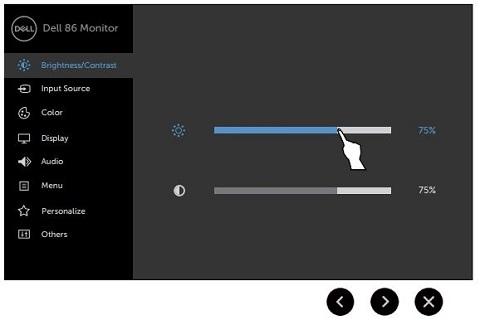
The process of changing monitor brightness has evolved from physical knobs on CRT monitors to touch-sensitive sliders and AI-driven ambient light detection. Today, the method depends on whether your display is a standalone unit (like a gaming monitor) or integrated into a laptop, and whether it runs on Windows, macOS, or Linux. Hardware buttons—often found on the bezel or side of the monitor—provide immediate adjustments, while software controls offer granularity, including presets for different lighting conditions. The choice between them isn’t just about preference; it’s about context. For example, a laptop user in a bright office might rely on hardware buttons for speed, while a graphic designer in a controlled studio may prefer software-based calibration for consistency.
Yet, the relationship between brightness and other display settings—such as contrast, gamma, and color temperature—complicates matters. A monitor set to maximum brightness may appear washed out if contrast isn’t adjusted proportionally, while a dim screen with high contrast can create harsh shadows. This interplay means that how to adjust monitor brightness effectively often requires considering the entire picture, not just the slider position. Ignoring these dependencies can lead to suboptimal viewing experiences, whether for work, entertainment, or creative tasks.
Historical Background and Evolution
The concept of adjusting monitor brightness traces back to the early days of cathode-ray tube (CRT) displays, where users manually turned a physical knob to compensate for ambient lighting. As LCD technology emerged in the 1990s, these knobs were replaced by hardware buttons, a transition that mirrored the shift from analog to digital controls. The real leap came with the introduction of backlit LCDs, which allowed for dynamic brightness adjustments—though early implementations were limited to basic on-screen menus or remote controls. The advent of OLED displays in the 2010s introduced pixel-level brightness control, eliminating the need for a uniform backlight and enabling true blacks, but also complicating calibration due to the lack of a traditional backlight layer.
Table of Contents
- The Complete Overview of Adjusting Monitor Brightness
- Historical Background and Evolution
- Core Mechanisms: How It Works
- Key Benefits and Crucial Impact
- Major Advantages
- Comparative Analysis
- Future Trends and Innovations
- Conclusion
- Comprehensive FAQs
- Q: Why does my monitor’s brightness keep resetting to default?
- Q: Can I adjust brightness independently for dual monitors?
- Q: Is it better to use hardware buttons or software controls for brightness?
- Q: How do I calibrate my monitor’s brightness for accurate colors?
- Q: Why does my OLED monitor’s brightness seem inconsistent?
- Q: What’s the ideal brightness setting for reducing eye strain?
Today, the evolution of monitor brightness adjustment is driven by two forces: hardware innovation and software integration. Modern monitors often feature ambient light sensors (ALS) that automatically adjust brightness based on room lighting, a feature borrowed from smartphones. Meanwhile, operating systems have embedded tools like Windows’ "Night Light" or macOS’s "Auto Brightness," which adjust not just luminance but also color temperature to reduce eye strain. However, these automated systems are not without criticism—some users argue they prioritize convenience over precision, especially in professional settings where color accuracy is critical.
Core Mechanisms: How It Works
At its core, adjusting monitor brightness involves modulating the intensity of light emitted by the display’s backlight (in LCDs) or individual pixels (in OLED). In LCD monitors, a thin-film transistor (TFT) layer controls how much light passes through each pixel, while the backlight—typically LED—provides the base illumination. When you increase brightness, the backlight emits more light, and the TFT layer adjusts to maintain color accuracy. In OLED monitors, each pixel emits its own light, allowing for infinite contrast ratios and true blacks, but also requiring precise brightness management to avoid burn-in or reduced lifespan.
The software side of how to adjust monitor brightness relies on APIs provided by the operating system or monitor manufacturer. For instance, Windows uses the Windows Display Driver Model (WDDM) to communicate with graphics drivers, while macOS leverages I/O Kit extensions for display control. These systems interpret user inputs—whether from a hardware button or on-screen slider—and translate them into commands for the monitor’s firmware. The firmware, in turn, adjusts the backlight or pixel output accordingly. However, this chain can break down if drivers are outdated or if the monitor lacks proper compatibility with the OS, leading to unresponsive brightness controls.
Key Benefits and Crucial Impact
Properly adjusting monitor brightness isn’t just about immediate comfort—it’s a foundational element of ergonomic computing. Studies from organizations like the American Optometric Association highlight that screens set to excessive brightness can cause temporary vision disturbances, while those too dim force the eyes to work harder, leading to fatigue. Beyond eye health, brightness settings play a role in productivity: a well-lit screen reduces glare and reflections, making it easier to focus for extended periods. Additionally, in creative fields like photography or graphic design, precise brightness control is essential for accurate color reproduction, as even slight deviations can alter the perceived tone of an image.
The impact of monitor brightness adjustment extends to hardware longevity. Monitors with fixed backlights (common in budget LCDs) are more susceptible to damage if operated at maximum brightness for prolonged periods, as excessive heat can degrade components. Conversely, OLED displays, while less prone to heat issues, can suffer from permanent image retention if brightness levels fluctuate wildly. This makes calibration not just a matter of preference but a practical consideration for preserving your investment.
"The human eye is remarkably adaptable, but it’s not designed for the prolonged, high-contrast environments created by digital displays. Brightness isn’t just a setting—it’s a variable that interacts with every other aspect of your visual experience."
— Dr. Emily Carter, Vision Ergonomics Specialist, University of California, Berkeley
Major Advantages
- Reduced Eye Strain: Matching screen brightness to ambient light minimizes the need for the eyes to constantly adjust, lowering the risk of digital eye strain and headaches.
- Improved Productivity: Optimal brightness reduces glare and reflections, making it easier to read text and view details for extended periods.
- Extended Hardware Lifespan: Avoiding extreme brightness levels prevents unnecessary wear on backlights and pixels, particularly in OLED and high-end LCD monitors.
- Better Color Accuracy: Proper brightness calibration ensures that colors are rendered as intended, which is critical for professionals in design, photography, and video editing.
- Energy Efficiency: Lower brightness settings consume less power, which is beneficial for both desktop users and laptop battery life.

Comparative Analysis
| Aspect | Hardware Brightness Controls | Software Brightness Controls |
|---|---|---|
| Convenience | Instant adjustments with physical buttons or touch-sensitive bezels. | Requires navigating OS settings or third-party tools, which can be time-consuming. |
| Precision | Limited to predefined increments (e.g., 10% steps). | Offers granular control, often with customizable presets and calibration tools. |
| Compatibility | Works universally across devices but may vary by manufacturer. | Depends on OS and driver support; some monitors lack full software integration. |
| Automation | Manual only; no built-in ambient light sensors. | Supports features like auto-brightness and color temperature adjustment. |
Future Trends and Innovations
The next generation of monitor brightness control is likely to be shaped by advancements in adaptive display technology. Already, some high-end monitors integrate eye-tracking sensors to adjust brightness and contrast based on where you’re looking, reducing strain on peripheral vision. Meanwhile, AI-driven calibration tools—such as those used in professional-grade displays—are becoming more accessible to consumers, offering real-time adjustments based on environmental factors like room lighting and user preferences. These systems may eventually eliminate the need for manual intervention entirely, though purists in fields like cinematography or graphic design may resist over-automation for fear of losing creative control.
Another emerging trend is the integration of health-focused features into brightness settings. Future displays might include built-in blue light filters that adjust dynamically based on time of day, or even biometric sensors that detect fatigue and suggest optimal brightness levels. For OLED and microLED displays, brightness management will become even more critical as these technologies push the boundaries of contrast and color volume. The challenge will be balancing automation with user customization, ensuring that how to adjust monitor brightness remains a collaborative process between technology and the individual.

Conclusion
Adjusting monitor brightness is deceptively simple on the surface but reveals layers of complexity when examined closely. Whether you’re relying on a quick hardware press or diving into software calibration, the goal remains the same: to create a viewing experience that is both comfortable and functional. The key takeaway is that there’s no one-size-fits-all solution—what works for a gamer in a dark room may not suit a writer in a sunlit office. The tools are there; the challenge is using them wisely.
As displays become smarter and more integrated with our daily lives, the line between manual control and automated assistance will continue to blur. For now, the best approach is to understand the options available, experiment with what feels right, and recognize that proper monitor brightness adjustment is more than a setting—it’s a cornerstone of modern digital well-being.
Comprehensive FAQs
Q: Why does my monitor’s brightness keep resetting to default?
A: This issue typically stems from one of three causes: outdated display drivers, a misconfigured power plan (especially on laptops), or a monitor firmware bug. Start by updating your graphics drivers through the manufacturer’s website or Windows Update. If the problem persists, check your power settings to ensure the monitor isn’t being reset during sleep or hibernation. For laptops, some manufacturers (like Dell or Lenovo) offer BIOS-level brightness overrides that can be disabled if they’re interfering with software controls.
Q: Can I adjust brightness independently for dual monitors?
A: Yes, but the method depends on your operating system. On Windows, right-click the desktop, select Display settings, and choose the monitor you want to adjust. Under Brightness and color, you’ll find individual sliders for each display. macOS users can go to System Preferences > Displays and adjust brightness per monitor. Linux users may need to use tools like xrandr or manufacturer-specific utilities. Note that some monitors, particularly budget models, may not support independent brightness control via software and will require manual adjustments.
Q: Is it better to use hardware buttons or software controls for brightness?
A: It depends on your workflow. Hardware buttons offer instant, tactile adjustments and are ideal for quick changes or when you’re in a hurry. Software controls, however, provide more precision—especially for calibration—and often include additional features like color temperature adjustments. If you frequently switch between different lighting conditions, a combination of both may be best: use hardware buttons for rapid changes and software for fine-tuning. For professional use (e.g., color grading), software is almost always preferable due to its granularity.
Q: How do I calibrate my monitor’s brightness for accurate colors?
A: Professional calibration requires tools like a colorimeter (e.g., X-Rite i1Display Pro) and software such as Adobe Gamma or DisplayCAL. However, a basic approach involves using your OS’s built-in tools:
- Set your monitor to a known standard (e.g., sRGB or Adobe RGB).
- Use a calibration tool or a grayscale test image to adjust brightness until midtones appear neither too dark nor too bright.
- Fine-tune contrast and gamma to ensure blacks are pure and whites aren’t washed out.
- Test with a color checker or side-by-side comparison to ensure consistency.
Q: Why does my OLED monitor’s brightness seem inconsistent?
A: OLED displays adjust brightness on a per-pixel basis, which can lead to perceived inconsistencies if the content being displayed has varying brightness levels (e.g., a dark scene with bright text). Additionally, OLEDs suffer from burn-in if static elements (like HUDs or logos) are displayed at maximum brightness for extended periods. To mitigate this, avoid setting brightness to 100% unless necessary, and use features like pixel refresh or static image warning if your monitor supports them. Some OLED TVs and monitors also include auto-brightness compensation to balance perceived luminance across different content types.
Q: What’s the ideal brightness setting for reducing eye strain?
A: The optimal setting varies by ambient light, but a general guideline is to match your screen’s brightness to the brightness of the surrounding environment. For indoor use, aim for a screen brightness between 100-150 nits (a nit is a unit of luminance). In bright conditions (e.g., sunlight), you may need to increase this to 200-300 nits, but avoid exceeding 300 nits unless necessary, as higher levels can cause glare and discomfort. For nighttime use, reduce brightness to 50-100 nits and enable a warm color temperature (e.g., 2500K-3000K) to minimize blue light exposure.
Leave a Comment
Comments are moderated before appearing. The data you submit is processed according to the Privacy Policy of Viralcontentbee.