How to Manage Storage on Mac: The Hidden Levers of Efficiency
Apple’s macOS is designed for elegance, but even the most refined systems can succumb to storage bloat. Over time, caches pile up, old apps linger, and system files balloon—silently eroding performance. The difference between a zippy Mac and a sluggish one often hinges on how to manage storage on Mac effectively. Unlike Windows, macOS hides critical storage hogs behind layers of abstraction, forcing users to dig deeper for solutions. The irony? Apple’s polished interface masks the very tools that could restore its speed.
Most users default to deleting obvious files—photos, downloads, or unused apps—but this is like cleaning only the surface of a kitchen counter while grease builds up in the pipes. The real art of optimizing Mac storage lies in understanding what’s actually consuming space: Time Machine backups, iOS device backups, duplicate files, and system-generated caches that regenerate overnight. These invisible culprits can inflate storage by hundreds of gigabytes without warning. The key isn’t just to free up space but to prevent it from returning—a balance between short-term cleanup and long-term habits.
The frustration peaks when Storage Management in macOS suggests there’s little to reclaim, yet the system still crawls. This disconnect stems from Apple’s selective transparency—some tools are buried in System Settings, others require Terminal commands, and a few demand third-party intervention. The solution? A layered approach: automate routine cleanup, audit hidden files, and leverage macOS’s built-in (but often overlooked) features. Mastering how to manage storage on Mac isn’t about brute-force deletion; it’s about strategy.
The Complete Overview of Managing Storage on Mac
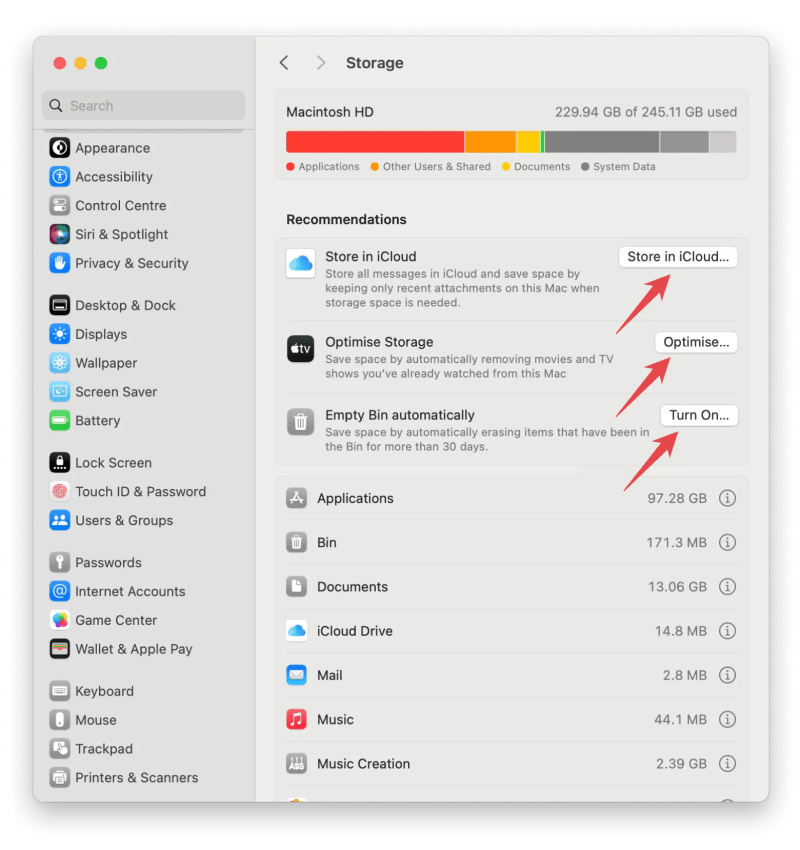
Apple’s storage management ecosystem is a paradox: powerful yet opaque. At its core, macOS employs a tiered system to categorize storage—System, Applications, Documents, User Data, and Others—but the "Others" category is where chaos often hides. This is the digital equivalent of a catch-all "Miscellaneous" folder that swells unpredictably. The built-in Storage Management tool (accessed via System Settings > General > Storage) is a starting point, but its recommendations—like "Optimize Storage" or "Empty Trash"—are reactive, not proactive. Users who rely solely on this tool risk a cycle of temporary relief followed by rapid re-accumulation.The deeper issue is macOS’s design philosophy: prioritize user experience over granular control. While this simplifies daily use, it obscures the mechanics of storage allocation. For instance, apps like Photoshop or Xcode cache temporary files in `/Library/Caches`, which can grow to tens of gigabytes. Meanwhile, iCloud syncs and Time Machine backups operate independently, often duplicating data across drives. The result? A fragmented storage landscape where the sum of parts exceeds the whole. To manage storage on Mac effectively, users must bridge this gap between Apple’s curated simplicity and the raw mechanics of file systems.
Historical Background and Evolution
Storage management on macOS has evolved alongside Apple’s shift from proprietary hardware to a broader ecosystem. Early versions of macOS (pre-Catalina) used a straightforward HFS+ filesystem, where storage was a more linear affair—files were either on the drive or in the trash. The introduction of APFS in macOS High Sierra (2017) marked a turning point, offering features like snapshots and space sharing, but also complicating manual management. APFS’s "copy-on-write" mechanism, while efficient, made it harder to track which files were truly redundant.Parallel to these technical changes, Apple’s design ethos has consistently favored automation over user intervention. The debut of Storage Management in macOS Sierra (2016) was a response to growing user frustration, but its limitations became apparent as storage demands outpaced its capabilities. For example, the tool’s "Reduce Clutter" feature only targets Time Machine local snapshots and old iOS backups—ignoring the far larger problem of duplicate files or unused app data. This gap forced third-party tools like CleanMyMac or DaisyDisk into the spotlight, filling niches Apple’s built-in solutions couldn’t address.
Table of Contents
- The Complete Overview of Managing Storage on Mac
- Historical Background and Evolution
- Core Mechanisms: How It Works
- Key Benefits and Crucial Impact
- Major Advantages
- Comparative Analysis
- Future Trends and Innovations
- Conclusion
- Comprehensive FAQs
- Q: Why does macOS Storage Management show "Other" as the largest category, but no files appear when I click it?
- Q: Can I safely delete files from `/Library/Caches`?
- Q: How do I find and remove duplicate files on my Mac?
- Q: Will optimizing storage affect my Time Machine backups?
- Q: How often should I manage my Mac’s storage?
- Add to ~/Library/LaunchAgents/com.user.cleanup.plist
- Q: Can I use an external SSD to extend my Mac’s storage?
- Q: What’s the best way to handle large iOS backups taking up space?
The tension between Apple’s curated approach and user needs has led to a hybrid model today: macOS provides the basics, but power users must supplement with external tools or Terminal commands. This duality reflects a broader trend in tech—where convenience often comes at the cost of control. Understanding this history is crucial for how to manage storage on Mac in 2024, as it explains why some solutions are buried in obscure menus or require manual oversight.
Core Mechanisms: How It Works
At the filesystem level, macOS uses a combination of metadata tags and hidden directories to organize storage. Each file or folder has attributes like "protected," "shared," or "system," which dictate how macOS interacts with it. For example, system files in `/System/Library` are locked to prevent accidental deletion, while user files in `/Users` are more accessible. The challenge arises when macOS generates temporary files—such as those in `/private/var/folders`—which lack clear ownership or purpose.The Storage Management tool relies on heuristics to identify "reclaimable" space. It scans for:
1. Large, unused apps (based on last-open dates).
2. Old iOS backups (stored in `~/Library/Application Support/MobileSync/Backup`).
3. Time Machine local snapshots (stored in `/System/Volumes/Data/.fseventsd`).
4. System caches (in `/Library/Caches` and `~/Library/Caches`).
5. Duplicate files (detected via file signatures, though this is less reliable).
However, these scans are shallow. They miss:
This selectivity is why how to manage storage on Mac often requires digging into `/Library` or using third-party tools to reveal the full picture. The filesystem itself is a labyrinth of permissions, symlinks, and hidden directories—mastering it is the first step toward true optimization.
Key Benefits and Crucial Impact
The stakes of effective storage management extend beyond freeing up gigabytes. A well-optimized Mac runs cooler, boots faster, and has fewer crashes—critical for professionals who rely on stability. Studies show that systems with fragmented storage or excessive cache files experience up to 30% slower performance in resource-intensive tasks. Beyond speed, managing storage on Mac also enhances security: old backups or unused apps can become vectors for malware, while duplicate files waste bandwidth during syncs.The psychological impact is equally significant. Users who proactively manage storage report lower stress levels, as they avoid the panic of running out of space mid-project. This is particularly true for creatives or developers, where storage constraints can derail workflows. The ripple effects of neglect—like forced app updates or system slowdowns—create a feedback loop of frustration. Conversely, a lean, organized system fosters a sense of control, aligning with Apple’s brand promise of seamless integration.
> "Storage isn’t just about capacity; it’s about the invisible tax on performance that accumulates over time. The Mac’s elegance suffers when its mechanics are ignored." — John Siracusa, Former Ars Technica macOS Reviewer
Major Advantages
- Performance Restoration: Clearing caches and old backups can reduce boot times by 20–40% and improve app launch speeds. System Memory (RAM) is freed up when unnecessary files are purged.
- Extended Hardware Lifespan: SSDs degrade faster under heavy write loads. Managing storage reduces unnecessary writes, preserving drive health—critical for high-end Macs with limited storage (e.g., 256GB models).
- Security Hardening: Removing old app data and backups eliminates potential attack surfaces. For example, abandoned iOS backups can contain sensitive data if not encrypted.
- Cost Efficiency: Avoiding the need for external drives or cloud storage upgrades saves money. Proactive management can delay hardware upgrades by 1–2 years.
- Workflow Continuity: Creative professionals (e.g., video editors) avoid interruptions from "Not Enough Storage" errors during renders. Automated cleanup ensures critical projects always have space.

Comparative Analysis
| Built-in macOS Tools | Third-Party Solutions |
|---|---|
|
|
|
|
Workaround: Combine with manual checks (e.g., `~/Library/Developer` for Xcode caches). |
Workaround: Use free trials to test before purchasing. |
Future Trends and Innovations
Apple’s next steps in storage management will likely focus on automation and AI-driven optimization. Rumors suggest macOS Sonoma or later may integrate real-time duplicate detection or predictive cleanup—mirroring iOS’s "Offload Unused Apps" feature. The challenge will be balancing automation with user control, as over-aggressive cleanup could disrupt workflows. Meanwhile, the rise of external SSD optimization (e.g., APFS optimizations for portable drives) will push users toward hybrid storage setups, where critical files reside on fast internal SSDs while archives live on slower, cheaper external drives.Another frontier is cloud-linked storage management, where Apple could sync cleanup recommendations across devices (e.g., suggesting you delete a file from all Macs and iPhones simultaneously). This would address the fragmented nature of modern storage ecosystems, where the same file exists in multiple locations. For now, users must rely on a mix of built-in tools and third-party solutions, but the future may blur these lines—making how to manage storage on Mac a more seamless, cross-platform experience.

Conclusion
The art of managing storage on Mac is equal parts science and habit. Science comes from understanding the filesystem’s hidden layers—where caches lurk and duplicates hide. Habit is about consistency: scheduling regular audits, automating backups, and resisting the urge to hoard "just in case" files. The payoff isn’t just more free space; it’s a system that feels responsive, secure, and future-proof.Apple’s tools provide a foundation, but the most efficient users go further—combining Terminal commands for precision, third-party apps for depth, and manual checks for edge cases. The goal isn’t perfection but equilibrium: enough space to work without the anxiety of running out. In an era where storage demands grow exponentially, the Mac’s true power lies in its ability to manage chaos, not just store it.
Comprehensive FAQs
Q: Why does macOS Storage Management show "Other" as the largest category, but no files appear when I click it?
A: The "Other" category in macOS Storage Management is a catch-all for system-generated files that aren’t easily accessible. These include:
Q: Can I safely delete files from `/Library/Caches`?
A: Most files in `/Library/Caches` are safe to delete, but some apps (like Adobe Creative Cloud) may regenerate them on next launch. To minimize risks:
1. Empty caches per-app: Navigate to `~/Library/Caches/` and delete folders for specific apps (e.g., `com.apple.Safari`).
2. Use `tmutil` for system caches: Run `sudo tmutil thinlocalsnapshots / 9999999999999999 1` to remove old Time Machine local snapshots (a major "Other" space hog).
3. Avoid deleting `com.apple.*` caches unless you’re troubleshooting—these are critical for system operations.
Q: How do I find and remove duplicate files on my Mac?
A: macOS lacks a built-in duplicate finder, but these methods work:
brew install fdupes
fdupes -r /Path/To/Scan
```
Q: Will optimizing storage affect my Time Machine backups?
A: Optimizing storage can impact Time Machine, but selectively:
Q: How often should I manage my Mac’s storage?
A: Frequency depends on usage:
Add to ~/Library/LaunchAgents/com.user.cleanup.plist
Then trigger cleanup scripts weekly.
Q: Can I use an external SSD to extend my Mac’s storage?
A: Yes, but with caveats:
Q: What’s the best way to handle large iOS backups taking up space?
A: iOS backups in `~/Library/Application Support/MobileSync/Backup` can balloon to 50GB+. Solutions:
1. Delete old backups: Use iMazing (paid) or Terminal:
```bash
rm -rf ~/Library/Application\ Support/MobileSync/Backup/
2. Disable automatic backups: Set iPhone/iPad to "Back Up Automatically" to iCloud only.
3. Use `tmutil`: If backups are in Time Machine, run `tmutil thinlocalsnapshots` to reclaim space.
4. Encryption note: Never delete backups without decrypting them first (use `idevicebackup2` tools if needed).
Leave a Comment
Comments are moderated before appearing. The data you submit is processed according to the Privacy Policy of Viralcontentbee.