How to Uninstall Java: The Definitive Step-by-Step Process for Security and Performance
Java, once a ubiquitous runtime environment for web applications, has become a liability for many users due to its security vulnerabilities and performance overhead. If your system is cluttered with outdated Java installations or you’re concerned about exploits targeting its outdated components, knowing how to uninstall Java properly is critical. Unlike standard applications, Java leaves behind residual files, registry entries, and cached data that can persist even after uninstallation. This guide provides a meticulous breakdown of how to uninstall Java across all major operating systems—Windows, macOS, and Linux—while addressing common pitfalls and ensuring a thorough cleanup.
The process of removing Java isn’t as straightforward as dragging an icon to the trash. Java’s architecture embeds itself deeply into system configurations, often requiring manual intervention to eliminate all traces. Many users attempt to uninstall Java through the standard software removal tools, only to discover that critical components—such as the Java Control Panel, browser plugins, or system libraries—remain intact. These remnants can continue to consume system resources, expose your machine to vulnerabilities, or interfere with other applications. Understanding the full scope of Java’s footprint on your system is the first step toward a clean, secure uninstallation.
Before proceeding, it’s essential to recognize why Java might still be necessary. Some legacy enterprise applications or older games rely on Java’s runtime environment to function. However, if you’re uninstalling Java for security reasons—such as mitigating risks from zero-day exploits—or to resolve performance issues, this guide ensures you do so without breaking dependent software. The following sections outline the complete process, from identifying installed versions to verifying removal and troubleshooting persistent issues.
The Complete Overview of How to Uninstall Java
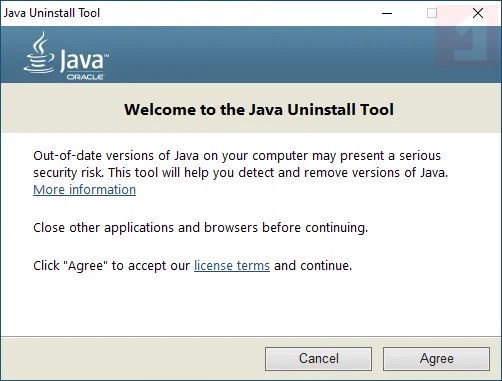
Java’s uninstallation process varies significantly depending on the operating system and the method used. On Windows, the Java uninstaller often fails to remove all associated files, leaving behind remnants in the registry and system directories. macOS and Linux, while more streamlined, still require careful handling to avoid residual configurations. The key to a successful removal lies in understanding Java’s installation structure: the Java Runtime Environment (JRE), Java Development Kit (JDK), and browser plugins are all interconnected, and neglecting any component can lead to incomplete removal.The most reliable approach involves a multi-step process: first, using the official Java uninstaller to remove the primary installation, then manually deleting leftover files, and finally verifying the system’s clean state. This method ensures that no hidden components—such as cached applets, temporary files, or registry entries—remain active. For users concerned about security, this thorough cleanup is non-negotiable, as even minor remnants can be exploited by malicious actors targeting Java’s known vulnerabilities. Below, we dissect the historical context of Java’s evolution and the mechanics behind its installation to provide a foundation for effective removal.
Historical Background and Evolution
Java was introduced by Sun Microsystems in 1995 as a platform-independent programming language designed to run applications across different operating systems. Its "write once, run anywhere" philosophy made it a cornerstone of web development, particularly for applets—small programs embedded in web pages. By the early 2000s, Java had become a staple in enterprise software, financial systems, and even consumer applications like early versions of Minecraft. However, as web technologies evolved, Java’s reliance on plugins and its security flaws became increasingly problematic.The turning point came in 2010, when Oracle acquired Sun Microsystems and began bundling Java with aggressive update mechanisms that often conflicted with user preferences. Security researchers began exposing critical vulnerabilities in Java’s runtime, leading to widespread exploitation by malware families like Exploit:Java/CVE-2013-2465. By 2016, major browsers—including Chrome, Firefox, and Edge—deprecated Java plugins entirely, rendering them obsolete for modern web standards. Despite this shift, many users still encounter Java installations on their systems, either due to legacy software requirements or accidental downloads. Understanding this history is crucial when deciding how to uninstall Java, as older versions may require different removal techniques than newer ones.
Core Mechanisms: How It Works
Java’s installation framework is designed for flexibility, which also makes it challenging to remove. When you install Java, whether it’s the JRE for running applications or the JDK for development, the installer creates multiple directories and registry entries. On Windows, these include:Table of Contents
- The Complete Overview of How to Uninstall Java
- Historical Background and Evolution
- Core Mechanisms: How It Works
- Key Benefits and Crucial Impact
- Major Advantages
- Comparative Analysis
- Future Trends and Innovations
- Conclusion
- Comprehensive FAQs
- Q: Can I safely uninstall Java if I don’t use it?
- Q: What should I do if Java keeps reinstalling itself after removal?
- Q: Does uninstalling Java affect my web browsing experience?
- Q: How do I verify that Java has been completely removed?
- Q: Will uninstalling Java break my Android development setup?
- Q: Are there any risks to manually editing the Windows registry?
- Q: How often should I check for outdated Java installations?
- Q: Can I reinstall Java after uninstalling it?
- Q: What if I encounter a "Java not found" error after removal?
On macOS, Java installations typically reside in `/Library/Java/JavaVirtualMachines/` and `~/Library/Application Support/Java/`, while Linux systems use `/usr/lib/jvm/` and user-specific paths in `~/.java/`. The Java Control Panel, accessible via system preferences or the command line, further complicates removal by maintaining links to installed versions. When you attempt to uninstall Java via the standard uninstaller, it may skip these auxiliary files, leaving your system partially exposed.
The most effective removal strategy involves targeting these core mechanisms: first, using the official uninstaller to remove the primary installation, then manually deleting residual directories, and finally clearing registry entries or configuration files. This approach ensures that no component—whether a plugin, cache, or system link—remains active, which is particularly important for security-conscious users.
Key Benefits and Crucial Impact
Removing Java from your system offers immediate and long-term benefits, particularly for security and performance. Modern applications increasingly rely on alternative technologies like WebAssembly, Node.js, or native compilers, reducing the need for Java’s runtime. By uninstalling Java, you eliminate a common attack vector for malware, ransomware, and exploit kits that target its outdated components. Additionally, Java’s background processes—such as the Java Update service—consume unnecessary CPU and memory, which can slow down older systems.For enterprises or developers, the decision to remove Java may seem counterintuitive, given its historical role in enterprise software. However, the shift toward cloud-native and containerized applications has diminished Java’s dominance in modern development. Even for legacy systems, a clean uninstallation followed by a targeted reinstall of only the necessary components (e.g., a specific JDK version) can improve stability and security. The following quote from a 2022 report by the CERT Coordination Center underscores the urgency of this process:
"Java remains one of the most frequently exploited software platforms, with over 60% of critical vulnerabilities in the last decade targeting its runtime environment. Users who fail to remove outdated Java installations expose their systems to preventable risks."
Major Advantages
Uninstalling Java provides the following critical benefits:- Enhanced Security: Removes a primary target for exploit kits and malware, reducing the risk of zero-day attacks.
- Improved Performance: Eliminates background processes (e.g., Java Update) that consume CPU and RAM unnecessarily.
- Cleaner System Resources: Frees up disk space occupied by Java caches, temporary files, and redundant installations.
- Compatibility with Modern Software: Reduces conflicts with newer applications that no longer support Java plugins.
- Simplified Maintenance: Removes outdated Java versions that may no longer receive security patches, streamlining system updates.

Comparative Analysis
The following table compares the standard Java uninstaller with a manual removal approach across key criteria:| Criteria | Standard Uninstaller | Manual Removal |
|---|---|---|
| Completeness of Removal | Partial (often leaves registry entries, caches, and plugins) | Complete (targets all files, directories, and system configurations) |
| Security Risk Post-Removal | High (residual components may still be exploitable) | Low (no traces remain, minimizing attack surface) |
| Ease of Execution | Simple (one-click process) | Complex (requires technical knowledge and multiple steps) |
| Compatibility Impact | May break legacy applications relying on Java | Minimal if only necessary components are removed |
Future Trends and Innovations
The future of Java’s role in computing is increasingly limited, as modern development paradigms favor lighter-weight alternatives. Oracle’s continued support for Java—now under its OpenJDK umbrella—focuses on enterprise and cloud applications, but even these are being challenged by frameworks like Kotlin, Go, and Rust. For end-users, the trend is clear: Java’s relevance outside of legacy systems is diminishing, making its removal a practical step toward optimizing system performance and security.However, Java’s influence persists in specific niches, such as Android development (where it underpins the Kotlin/Java hybrid system) and large-scale enterprise systems. For these users, uninstalling Java entirely may not be feasible, but adopting a minimalist approach—installing only the required JDK version and disabling unnecessary features—can mitigate risks. As browsers continue to phase out plugin support, the need for Java’s runtime in everyday computing will further decline, reinforcing the case for its removal from non-specialized systems.
Conclusion
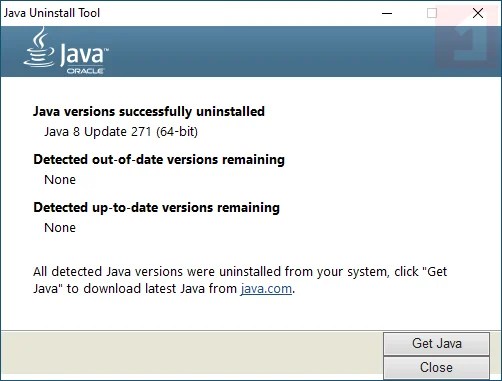
Uninstalling Java is not merely about removing an application; it’s about reclaiming control over your system’s security and performance. While the process requires careful attention to detail—especially when dealing with residual files and configurations—the rewards are substantial. By following the steps outlined in this guide, you can ensure a thorough removal of Java, whether for security reasons, performance optimization, or simply to declutter your system. For users who must retain Java for specific applications, targeted reinstallation of only the necessary components is a viable alternative.The decline of Java’s dominance in modern computing underscores the importance of staying informed about software lifecycle management. As technologies evolve, so too must our approaches to system maintenance. For now, knowing how to uninstall Java properly remains a critical skill in the digital age.
Comprehensive FAQs
Q: Can I safely uninstall Java if I don’t use it?
A: Yes, if you no longer rely on Java for any applications or development work, uninstalling it is safe. Modern browsers no longer support Java plugins, and most software has migrated to alternative runtimes. However, verify that no legacy applications depend on Java before proceeding.
Q: What should I do if Java keeps reinstalling itself after removal?
A: This typically occurs if Java is bundled with another application or if an automatic updater is configured. Check for third-party software that might reinstall Java, such as older versions of Adobe Creative Suite or enterprise tools. Additionally, scan your system for malware that could be forcing Java’s presence.
Q: Does uninstalling Java affect my web browsing experience?
A: No, modern browsers have deprecated Java plugins, so removing Java will not impact your ability to browse the web. Some older websites may no longer function correctly, but this is rare in 2024 due to the shift toward HTML5 and other standards.
Q: How do I verify that Java has been completely removed?
A: After uninstallation, check for remaining Java files in standard directories (e.g., `Program Files/Java`, `AppData`, or `/Library/Java/`). On Windows, search the registry for Java-related keys under `HKEY_LOCAL_MACHINE` and `HKEY_CURRENT_USER`. Finally, run `java -version` in the command line; if no output appears, Java is fully removed.
Q: Will uninstalling Java break my Android development setup?
A: No, Android development relies on the Android Studio IDE and its bundled JDK, not the system-wide Java installation. However, ensure you’re using the correct JDK version specified by Android Studio to avoid compatibility issues.
Q: Are there any risks to manually editing the Windows registry?
A: Yes, manually editing the registry can cause system instability or data loss if done incorrectly. Always back up your registry before making changes. For Java removal, focus on deleting keys under `SOFTWARE\Java` and `SOFTWARE\Wow6432Node\Java`—never modify unrelated entries.
Q: How often should I check for outdated Java installations?
A: If you no longer use Java, there’s no need to monitor for updates. However, if you must retain it for specific applications, check for updates monthly or enable automatic updates in the Java Control Panel to patch security vulnerabilities promptly.
Q: Can I reinstall Java after uninstalling it?
A: Yes, you can reinstall Java at any time by downloading the latest version from Oracle’s official website or OpenJDK’s repositories. However, ensure you’re installing the correct version (JRE for end-users, JDK for developers) to avoid compatibility issues.
Q: What if I encounter a "Java not found" error after removal?
A: This error typically appears if an application expects Java to be installed. Verify the application’s documentation for alternative dependencies (e.g., switching to a newer runtime or using a virtual environment). If the application is obsolete, consider replacing it with a modern alternative.
Leave a Comment
Comments are moderated before appearing. The data you submit is processed according to the Privacy Policy of Viralcontentbee.