How to Check Java Version: The Definitive Guide for Developers and IT Professionals
Java’s ubiquity in enterprise applications, Android development, and backend systems makes knowing how to check Java version a fundamental skill for developers, system administrators, and IT professionals. Whether you’re debugging a legacy application, configuring a build environment, or ensuring security compliance, the ability to quickly determine which Java version is active—or installed—can save hours of frustration. The command-line method (`java -version`) remains the most direct approach, but modern systems often host multiple JDK/JRE installations, requiring deeper investigation to avoid misconfigurations.
For enterprises relying on Java, version discrepancies between development, testing, and production environments are a common source of deployment failures. A misaligned Java version can trigger cryptic errors, from `UnsupportedClassVersionError` to security vulnerabilities in outdated runtimes. Even in cloud-native setups, containerized applications may silently inherit system-wide Java versions unless explicitly overridden. Understanding how to verify Java version across different operating systems and deployment contexts is no longer optional—it’s a critical safeguard against technical debt.
The evolution of Java’s release cycle—from the biennial feature updates of Java 8 to the six-month cadence of newer versions—has further complicated version management. Developers must now balance feature adoption with stability, while IT teams grapple with patching strategies for long-term support (LTS) releases. This guide dissects the technical, operational, and strategic dimensions of checking Java version, from basic commands to advanced diagnostics, ensuring you can navigate Java’s ecosystem with precision.

The Complete Overview of Checking Java Version
The process of checking Java version extends beyond a simple terminal command, encompassing system-wide configurations, environment variables, and even virtualized deployments. At its core, the task involves querying the Java Runtime Environment (JRE) or Java Development Kit (JDK) to confirm the installed version, architecture (32-bit vs. 64-bit), and vendor (Oracle, OpenJDK, Adoptium, etc.). However, the complexity arises when multiple versions coexist—such as a system default JDK alongside a project-specific version managed via tools like SDKMAN! or `update-alternatives`. Missteps here can lead to silent failures, where an application runs on Java 17 in development but defaults to Java 8 in production, causing subtle runtime inconsistencies.Modern development workflows often abstract version management behind build tools (Maven, Gradle) or container orchestration (Docker, Kubernetes), but these layers rely on an underlying Java installation. For instance, a Maven `pom.xml` might specify `
Historical Background and Evolution
The command to check Java version (`java -version`) has remained largely unchanged since Java’s early days, reflecting its status as a foundational operation. In the pre-Java 9 era, the output was straightforward:
```
java version "1.8.0_301"
Java(TM) SE Runtime Environment (build 1.8.0_301-b09)
Java HotSpot(TM) 64-Bit Server VM (build 25.301-b09, mixed mode)
```
This format provided version, vendor, and JVM details, but lacked granularity for modern use cases. The introduction of Java 9’s modular system (JPMS) and the shift to semantic versioning (e.g., `11.0.12`) necessitated updates to version-checking tools. Today, the output includes additional metadata:
```
openjdk version "17.0.6" 2023-01-17
OpenJDK Runtime Environment (build 17.0.6+9-Ubuntu-0ubuntu122.04)
OpenJDK 64-Bit Server VM (build 17.0.6+9-Ubuntu-0ubuntu122.04, mixed mode, sharing)
```
This evolution mirrors Java’s broader trajectory: from a monolithic runtime to a modular, vendor-agnostic ecosystem.
The proliferation of Java distributions—Oracle JDK, OpenJDK, Amazon Corretto, Azure OpenJDK—has further diversified the landscape. Each vendor may include proprietary optimizations or security patches, altering the output of `java -version`. For example, Amazon Corretto’s output includes:
```
Amazon Corretto 17.0.6.10.1 (64-bit)
```
This subtle branding underscores the need for checking Java version not just for compatibility, but also for compliance and support tracking. Enterprises must now reconcile version strings with vendor-specific SLAs, adding another layer to the process.
Core Mechanisms: How It Works
Under the hood, the `java -version` command interacts with the JVM’s internal versioning system, which is embedded in the runtime’s class files and system properties. When executed, the JVM reads its own metadata—stored in constants like `java.version` and `java.vendor`—and formats it for display. This mechanism is reliable for the active Java installation but fails to expose other installed versions unless additional tools (e.g., `update-java-alternatives`, `jenv`) are used.Table of Contents
- The Complete Overview of Checking Java Version
- Historical Background and Evolution
- Core Mechanisms: How It Works
- Key Benefits and Crucial Impact
- Major Advantages
- Comparative Analysis
- Future Trends and Innovations
- Conclusion
- Comprehensive FAQs
- Q: Why does `java -version` show a different result than `javac -version`?
- Q: How can I check all installed Java versions on Linux?
- Q: What does the "mixed mode" in `java -version` output mean?
- Q: Can I check the Java version in a Docker container?
- Q: How do I verify the Java version used by a specific application?
- Q: What’s the difference between `java.version` and `java.runtime.version`?
- Q: Why does my IDE (IntelliJ/Eclipse) show a different Java version than the terminal?
- Q: How can I automate Java version checks in CI/CD pipelines?
- Q: Are there tools to compare Java versions across environments?
- Q: What should I do if `java` command is not found?
For deeper inspection, developers can leverage system properties via:
```bash
java -XshowSettings:properties -version 2>&1 | grep "java.version"
```
This reveals not just the version string but also the full set of JVM properties, including:
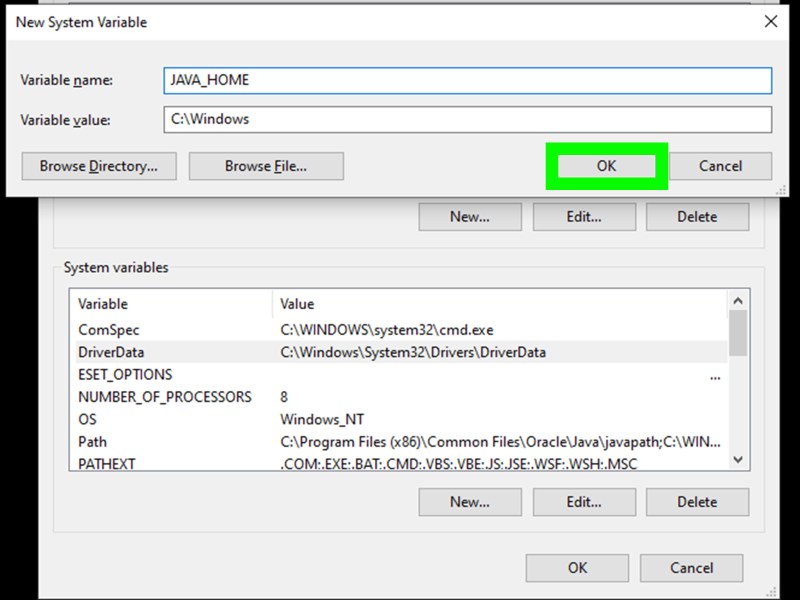
The underlying file system also plays a role. On Linux/macOS, Java installations are typically located in `/usr/lib/jvm/` or `/Library/Java/JavaVirtualMachines/`, while Windows stores them in `C:\Program Files\Java\`. Tools like `readlink -f $(which java)` can resolve symlinks to the actual binary, revealing the active version’s path. This low-level approach is invaluable when environment variables (`JAVA_HOME`) or alternative managers (`update-alternatives`) obscure the true installation.
Key Benefits and Crucial Impact
The ability to check Java version is more than a troubleshooting step—it’s a gateway to system integrity, security, and performance optimization. In development, version mismatches are a leading cause of `NoClassDefFoundError` or `ClassFormatError`, where compiled bytecode for Java 17 is fed into a Java 8 JVM. Such errors often manifest late in the deployment pipeline, after hours of debugging. Proactively verifying Java versions across environments—dev, staging, production—reduces these risks by ensuring consistency.Security is another critical dimension. Java’s regular updates (e.g., CVE patches in LTS releases) mean that outdated versions may expose systems to exploits. For instance, Java 8’s end-of-public-updates in 2020 forced enterprises to migrate to LTS versions (Java 11, 17) or risk vulnerabilities. Tools like `java -version` paired with vulnerability databases (e.g., NVD) allow teams to audit their Java footprint against known threats. Even in containerized deployments, neglecting to verify Java version can leave applications vulnerable to container breakout attacks if older, unpatched runtimes are used.
"Java version mismatches are the silent killers of enterprise applications—often detected too late, when a critical service fails in production. The cost isn’t just downtime; it’s lost trust, compliance violations, and accelerated technical debt." — Java Security Lead, Red Hat
Major Advantages
- Environment Consistency: Ensures all team members and CI/CD pipelines use the same Java version, preventing "works on my machine" issues.
- Security Compliance: Identifies outdated versions that lack critical patches, reducing attack surfaces.
- Performance Tuning: Different Java versions offer varying garbage collection optimizations (e.g., ZGC in Java 11+) or JIT compiler improvements, impacting latency and throughput.
- Vendor-Specific Features: Some distributions (e.g., Amazon Corretto) include proprietary enhancements; verifying the vendor ensures access to these features.
- Debugging Efficiency: Narrows down issues to version-specific bugs (e.g., regressions in Java 17’s module system) rather than generic runtime errors.

Comparative Analysis
| Method | Use Case |
|---|---|
java -version |
Quick check of the active Java installation (default system path). |
javac -version |
Verifies the JDK version (compiler), distinct from the JRE version. |
update-java-alternatives --list (Linux) |
Lists all installed Java versions and their active status. |
| GUI Tools (e.g., Java Control Panel on Windows) | User-friendly but limited to basic version display; not suitable for scripting. |
Future Trends and Innovations
The future of checking Java version will be shaped by two opposing forces: the push for standardization and the fragmentation of deployment models. On one hand, tools like GraalVM and native-image compilation are reducing reliance on traditional JVM versioning, as applications are compiled to standalone binaries with embedded runtimes. This shift may obviate the need for frequent `java -version` checks, as the runtime becomes a black box within the application. On the other hand, the rise of polyglot microservices—where Java interacts with Go, Rust, or Python—will demand even stricter version governance to avoid interoperability issues.Another trend is the integration of version checks into broader observability platforms. Modern APM tools (e.g., Dynatrace, New Relic) already monitor JVM metrics; extending this to include version reconciliation could automate compliance and performance tuning. For example, an APM system might flag a Java 8 instance running in a Kubernetes cluster where Java 17 is the standard, triggering automated remediation. This convergence of version management with DevOps practices will redefine how teams verify Java version—not as an ad-hoc command, but as a continuous, data-driven process.
Conclusion
Mastering the art of checking Java version is a cornerstone of modern software development, bridging the gap between low-level system configurations and high-level application logic. The commands themselves are simple, but their implications—security, compatibility, performance—are profound. As Java continues to evolve, the methods for version verification will adapt, but the core principle remains: understanding your runtime environment is non-negotiable.For developers, this means integrating version checks into CI/CD pipelines and infrastructure-as-code templates. For IT teams, it involves auditing legacy systems and planning migration paths for end-of-life versions. And for security professionals, it’s about treating Java version mismatches as high-severity risks. The next time you need to check Java version, remember: you’re not just running a command—you’re ensuring the stability of the systems that power your business.
Comprehensive FAQs
Q: Why does `java -version` show a different result than `javac -version`?
A: This discrepancy occurs when the system’s `PATH` prioritizes a JRE (runtime-only) over a JDK (which includes the compiler). The JRE handles `java` commands, while `javac` requires the JDK. To resolve this, set `JAVA_HOME` to point to the correct JDK or use the full path (e.g., `/usr/lib/jvm/java-17-openjdk/bin/javac -version`).
Q: How can I check all installed Java versions on Linux?
A: Use `update-java-alternatives --list` (Debian/Ubuntu) or `alternatives --config java` (RHEL/CentOS). For manual inspection, list files in `/usr/lib/jvm/` or `/usr/local/java/` and check subdirectories named `jdk-
Q: What does the "mixed mode" in `java -version` output mean?
A: "Mixed mode" indicates the JVM uses both interpreted bytecode execution and native-compiled code (via the JIT compiler). This is standard for most Java applications and doesn’t affect version checks. However, if you see "pure interpreter mode," it suggests JIT compilation is disabled, often due to `-Xint` flag or unsupported hardware.
Q: Can I check the Java version in a Docker container?
A: Yes. Execute `java -version` inside the container using `docker exec -it
Q: How do I verify the Java version used by a specific application?
A: Use `ps aux | grep java` to find the process ID (PID), then inspect its environment with `cat /proc/
Q: What’s the difference between `java.version` and `java.runtime.version`?
A: `java.version` returns the semantic version (e.g., `17.0.6`), while `java.runtime.version` includes the full build string (e.g., `17.0.6+9-Ubuntu-0ubuntu122.04`). The latter is useful for diagnosing vendor-specific patches or OS-level optimizations, but `java.version` is sufficient for most compatibility checks.
Q: Why does my IDE (IntelliJ/Eclipse) show a different Java version than the terminal?
A: IDEs often use their own embedded JDK or respect the `JAVA_HOME` path configured in their settings. To align them, set the IDE’s JDK preference to match your system’s default (or use a version manager like `jenv`). For IntelliJ, go to `File > Project Structure > SDKs`; for Eclipse, use `Window > Preferences > Java > Installed JREs`.
Q: How can I automate Java version checks in CI/CD pipelines?
A: Add a script step to your pipeline (e.g., GitHub Actions, Jenkins) using `java -version` and exit with a non-zero status if the version doesn’t match expectations. Example (Bash):
```bash
#!/bin/bash
EXPECTED_VERSION="17.0.6"
ACTUAL_VERSION=$(java -version 2>&1 | awk -F'"' '/version "/ {print $2}')
if [ "$ACTUAL_VERSION" != "$EXPECTED_VERSION" ]; then
echo "Java version mismatch: expected $EXPECTED_VERSION, got $ACTUAL_VERSION"
exit 1
fi
```
Q: Are there tools to compare Java versions across environments?
A: Yes. Tools like SDKMAN! (for local environments) and jenv provide version switching and comparison. For cloud/containerized setups, use `kubectl` to inspect pod environments or Terraform modules to enforce Java version constraints in IaC.
Q: What should I do if `java` command is not found?
A: This typically means no JDK/JRE is installed or the `PATH` is misconfigured. Install Java via your package manager (e.g., `sudo apt install openjdk-17-jdk`), then add the JDK’s `bin` directory to `PATH` (e.g., `export PATH=$PATH:/usr/lib/jvm/java-17-openjdk/bin`). Verify with `echo $PATH` and `which java`.
Leave a Comment
Comments are moderated before appearing. The data you submit is processed according to the Privacy Policy of Viralcontentbee.