Excel SUMIF Demystified: The Powerhouse Function You’re Not Using Right
Microsoft Excel’s SUMIF function is the quiet workhorse of data analysis, silently aggregating values based on precise criteria without the need for complex nested formulas. It’s the difference between manually filtering and summing rows—only to realize you missed a condition—and effortlessly letting Excel handle the logic. Yet, despite its ubiquity, many users either overlook its potential or fail to exploit its full capabilities, settling for basic applications when advanced techniques could save hours. The function’s elegance lies in its simplicity: a single formula can replace what would otherwise require PivotTables, helper columns, or VBA scripting. But mastering SUMIF—and its more sophisticated cousin, SUMIFS—demands an understanding of how Excel evaluates conditions, handles data types, and prioritizes operations.
The frustration of mismatched sums or unexpected blanks often stems from overlooking subtle details: whether the criteria range includes headers, how wildcards interact with text comparisons, or why dates behave differently than numbers. These nuances separate the spreadsheet novices from those who wield SUMIF like a precision tool. For accountants reconciling transactions, marketers segmenting sales data, or operations managers tracking inventory, the function’s efficiency is non-negotiable. Yet, its power isn’t limited to finance; in logistics, it can sum shipments by region; in HR, it can tally employee hours by department. The key lies in recognizing when to use SUMIF versus alternatives like SUMPRODUCT or AGGREGATE, and how to structure data to minimize errors.

The Complete Overview of Excel SUMIF
At its core, Excel SUMIF is a conditional summation tool that adds values in a range based on a single criterion. The syntax—`SUMIF(range, criteria, [sum_range])`—is deceptively straightforward, but the flexibility lies in how those parameters are defined. The first argument, `range`, specifies the cells to evaluate against the `criteria` (e.g., "Revenue > 1000" or "Status = 'Shipped'"). The optional `[sum_range]` allows summing values from a different column than the one being evaluated, a feature critical for multi-column datasets. This design mirrors Excel’s philosophy: prioritize clarity over complexity, but allow depth for those who need it. For instance, summing sales where product codes match a specific pattern doesn’t require VBA; a well-placed SUMIF with a wildcard (`"PROD123")` suffices. The function’s strength is its adaptability to structured and unstructured data alike.What sets SUMIF apart is its ability to handle implicit and explicit criteria. Implicit criteria (e.g., numbers or dates) are evaluated directly, while text requires careful formatting—whether enclosed in quotes or referenced from another cell. Dates, in particular, demand attention to formatting; comparing `A1` (stored as text) to `B1` (a date) will yield errors unless both are coerced into the same type. Advanced users leverage this by combining SUMIF with `TEXT` functions to convert dates into comparable strings (e.g., `"=SUMIF(A:A, TEXT(B1, "mm/dd/yyyy"), C:C)").` The function also respects Excel’s hierarchy of operations, meaning logical operators (`>`, `<=`, `AND`) must be nested within quotes (e.g., `">1000"`), while text comparisons are case-insensitive unless configured otherwise. These mechanics underscore why SUMIF is indispensable: it bridges the gap between raw data and actionable insights with minimal effort.
Historical Background and Evolution
The SUMIF function traces its origins to early spreadsheet software, where conditional aggregation was a manual process requiring filters or loops. Lotus 1-2-3 introduced rudimentary conditional summing in the 1980s, but it was Microsoft’s Excel—particularly in its 1993 release—that formalized the syntax we recognize today. The function’s evolution mirrored Excel’s broader shift toward user-friendly automation, reducing the need for programming skills to perform complex analyses. Early versions of SUMIF were limited to single-criteria evaluations, a constraint that persisted until Excel 2007, when SUMIFS (supporting multiple criteria) was introduced. This upgrade reflected growing demands for multi-dimensional data analysis, allowing users to sum values where, for example, region and product category and date range all matched.The introduction of SUMIFS marked a turning point, as it eliminated the need for cumbersome array formulas or helper columns to combine conditions. Prior to this, users might chain multiple SUMIF functions or use `SUMPRODUCT` with `IF` statements—a workaround that was both error-prone and inefficient. The addition of SUMIFS also highlighted Excel’s commitment to backward compatibility, ensuring older workbooks remained functional while new features expanded capabilities. Today, SUMIF and SUMIFS are cornerstones of Excel’s data analysis toolkit, with integrations into Power Query and Power Pivot further extending their utility. Their longevity speaks to a fundamental truth: the most enduring tools solve problems simply, reliably, and without unnecessary complexity.
Core Mechanisms: How It Works
Under the hood, SUMIF operates by iterating through the specified range, comparing each cell to the criteria, and summing the corresponding values in the `[sum_range]` (or the same range if omitted). The comparison is strict: numbers are evaluated numerically, text is compared lexicographically, and dates are treated as serial numbers (e.g., January 1, 1900 = 1). This precision is why SUMIF excels at tasks like summing invoices over a threshold or calculating regional sales totals. However, the function’s behavior changes subtly with data types. For example, comparing a number to text (e.g., `SUMIF(A:A, "500", B:B)`) will return zero unless the text is explicitly converted to a number via `VALUE()`. Dates require similar care; comparing `A1` (a date) to `"01/01/2023"` (text) fails unless both are formatted identically.The optional `[sum_range]` introduces another layer of control. When omitted, SUMIF sums values from the same range as the criteria. Including it allows summing a different column—critical for scenarios like summing quantities from Column C where product names in Column A match a specific term. This flexibility is why SUMIF is often paired with `INDEX`/`MATCH` for dynamic lookups or with `TEXTJOIN` to concatenate results. The function also respects Excel’s volatile nature: recalculating the entire workbook triggers SUMIF to re-evaluate, ensuring real-time accuracy. Understanding these mechanics is essential for troubleshooting. For instance, a blank result might indicate a mismatch in data types, while a #VALUE! error often signals a misplaced quote or incompatible range.
Key Benefits and Crucial Impact
The primary advantage of SUMIF is its ability to transform raw data into meaningful aggregates with minimal setup. Unlike PivotTables, which require structured data and can be slow with large datasets, SUMIF operates on any range—even unformatted or irregularly formatted data. This makes it ideal for ad-hoc analyses, such as summing customer orders by a specific discount code or calculating overtime pay based on shift types. The function’s speed is another differentiator; it processes criteria in milliseconds, making it suitable for real-time dashboards or automated reports. For businesses, this translates to faster decision-making, reduced manual errors, and the ability to reallocate resources from data entry to strategic tasks.Table of Contents
- The Complete Overview of Excel SUMIF
- Historical Background and Evolution
- Core Mechanisms: How It Works
- Key Benefits and Crucial Impact
- Major Advantages
- Comparative Analysis
- Future Trends and Innovations
- Conclusion
- Comprehensive FAQs
- Q: Why does my SUMIF return zero when the criteria clearly matches?
- Q: Can SUMIF handle partial text matches (e.g., "Prod*" for "Product123")?
- Q: How does SUMIF differ from SUMPRODUCT for multi-criteria sums?
- Q: Will SUMIF work with filtered or hidden rows?
- Q: Can I use SUMIF with dates stored as text (e.g., "01/01/2023")?
- Q: What’s the best practice for SUMIF in large datasets (e.g., 100,000+ rows)?
- Q: How can I sum values based on a dynamic criteria (e.g., from another cell)?
- Q: Does SUMIF support OR conditions (e.g., sum if A=1 OR A=2)?
Beyond efficiency, SUMIF fosters collaboration by standardizing data aggregation across teams. Accountants, sales analysts, and operations managers can apply the same logic to disparate datasets without reinventing the wheel. This consistency is particularly valuable in regulated industries, where audit trails must document how sums were derived. Additionally, SUMIF integrates seamlessly with other functions, enabling complex workflows. For example, combining it with `IFERROR` prevents errors from propagating, while nesting it within `SUMPRODUCT` allows for multi-criteria sums without SUMIFS. The function’s versatility extends to automation: SUMIF can be embedded in dynamic named ranges, used in `LET` functions (Excel 365), or referenced in Power Query’s M code for advanced ETL processes.
"The beauty of SUMIF lies in its ability to turn noise into signal. It doesn’t just sum data—it summons clarity from chaos." — Excel MVP, David Axmark
Major Advantages
- Single-Criterion Precision: Evaluates one condition at a time, reducing complexity compared to multi-criteria alternatives like SUMIFS or `SUMPRODUCT`.
- Data Type Flexibility: Handles numbers, text, dates, and even logical comparisons (e.g., `SUMIF(A:A, ">50", B:B)`) without requiring type conversion.
- Performance Efficiency: Outperforms PivotTables for large datasets or unstructured data, as it doesn’t require table formatting or caching.
- Integration Readiness: Works with dynamic arrays (Excel 365), Power Query, and VBA, making it future-proof for automated workflows.
- Auditability: Explicit criteria and ranges make it easier to trace calculations back to source data, a critical feature for compliance.

Comparative Analysis
| Feature | SUMIF vs. SUMIFS |
|---|---|
| Criteria Support |
|
| Syntax Complexity |
|
| Performance |
|
| Use Case Fit |
|
Future Trends and Innovations
As Excel continues to evolve, SUMIF is poised to benefit from advancements in dynamic arrays and AI-assisted functions. Excel 365’s `LET` function, for example, allows breaking down complex SUMIF formulas into reusable variables, improving readability and maintainability. Similarly, the introduction of `LAMBDA` functions enables users to create custom SUMIF-like operations tailored to specific workflows. On the horizon, AI-driven features—such as Excel’s "Ideas" or "Quick Measures"—may automate the selection of appropriate functions, including SUMIF, based on contextual data patterns. This could democratize advanced analytics, allowing non-technical users to leverage the function’s power without deep formula knowledge.Another trend is the integration of SUMIF with cloud-based collaboration tools. As real-time data sharing becomes standard, SUMIF will play a key role in aggregating insights across distributed datasets, whether in SharePoint, Power BI, or third-party APIs. Additionally, the rise of low-code platforms suggests that SUMIF’s logic may be embedded in no-code tools, further blurring the line between spreadsheet functions and application development. For power users, the future lies in combining SUMIF with Python or R via Excel’s `PY` and `R` functions, enabling statistical aggregations previously requiring external tools. The function’s adaptability ensures it will remain relevant, even as Excel’s ecosystem expands.
Conclusion
Excel SUMIF is more than a function—it’s a gateway to efficient data analysis, capable of handling everything from simple filters to complex conditional logic. Its strength lies in balancing simplicity with depth, offering a solution for users at all skill levels. By understanding its mechanics—how criteria are evaluated, how ranges interact, and when to prefer SUMIF over alternatives—users can unlock workflows that save time, reduce errors, and enhance collaboration. The function’s integration with modern Excel features ensures it will continue to be a cornerstone of data-driven decision-making, whether in finance, operations, or research.The key to mastering SUMIF is experimentation. Start with basic examples, then gradually introduce wildcards, multiple criteria, and dynamic ranges. Document your formulas and test edge cases (e.g., empty cells, mixed data types) to build resilience. As Excel evolves, so too will the ways SUMIF can be applied—from automated reporting to AI-assisted insights. The function’s enduring relevance is a testament to its design: solve a problem clearly, reliably, and without unnecessary complexity. In an era where data volume grows exponentially, SUMIF remains one of the most powerful tools for turning numbers into actionable intelligence.
Comprehensive FAQs
Q: Why does my SUMIF return zero when the criteria clearly matches?
Zero results typically stem from one of three issues: (1) Data type mismatch—comparing text to numbers or unformatted dates; (2) Hidden characters—spaces or line breaks in criteria (e.g., `" Sold"` vs. `"Sold"`); or (3) Incorrect range references—omitting headers or using absolute/relative references improperly. To debug, verify the criteria’s exact format (use `=TEXT(criteria_cell, "General")` to inspect) and ensure the range includes all relevant rows.
Q: Can SUMIF handle partial text matches (e.g., "Prod*" for "Product123")?
Yes, using wildcards: enclose the pattern in quotes with `` for any characters before/after (e.g., `SUMIF(A:A, "Prod*", B:B)`). For case-sensitive matches, combine with `EXACT()` or use `FIND()` in criteria. Note that wildcards are limited to text comparisons; numbers/dates require operators like `">"` or `"="`.
Q: How does SUMIF differ from SUMPRODUCT for multi-criteria sums?
SUMIFS is the direct alternative for multiple criteria, but `SUMPRODUCT` offers more flexibility when conditions are complex or non-linear (e.g., summing where A > 1000 and B < 500). SUMIFS is cleaner for straightforward AND/OR logic, while `SUMPRODUCT` excels with nested `IF` statements or array operations. For example:
SUMPRODUCT((A:A>1000)*(B:B<500), C:C)
vs.
SUMIFS(C:C, A:A, ">1000", B:B, "<500")
Q: Will SUMIF work with filtered or hidden rows?
No. SUMIF evaluates the entire specified range, including hidden or filtered rows. To sum visible rows only, use `SUBTOTAL(9, range)` or `AGGREGATE(9, 6, range, criteria)`. For dynamic filtering, consider Power Query or VBA loops. Hidden rows can also cause #REF! errors if ranges shift during filtering.
Q: Can I use SUMIF with dates stored as text (e.g., "01/01/2023")?
Direct comparisons fail because text and dates are treated differently. Convert text dates to serial numbers using `DATEVALUE()` or `TEXT()`:
SUMIF(A:A, DATEVALUE("01/01/2023"), B:B)
Alternatively, reformat the column to a date type (Ctrl+1 → Number → Date) or use `TEXT()` to standardize formats (e.g., `TEXT(A1, "mm/dd/yyyy")`).
Q: What’s the best practice for SUMIF in large datasets (e.g., 100,000+ rows)?
For performance, minimize volatile functions in criteria (e.g., avoid `TODAY()` or `RAND()`), use table references (structured ranges) instead of full-column references (e.g., `Table1[Column]`), and consider:
- Data validation: Ensure no duplicate or blank criteria cells.
- Batch processing: Split data into smaller ranges or use Power Query.
- Caching: Pre-calculate criteria in helper columns if reused.
Q: How can I sum values based on a dynamic criteria (e.g., from another cell)?
Reference the cell directly in the criteria argument:
SUMIF(A:A, B1, C:C)
where `B1` contains the dynamic value (e.g., a dropdown selection or user input). For partial matches, combine with wildcards:
SUMIF(A:A, "" & B1 & "", C:C)
Ensure `B1`’s content matches the expected data type (e.g., numbers without quotes, text in quotes).
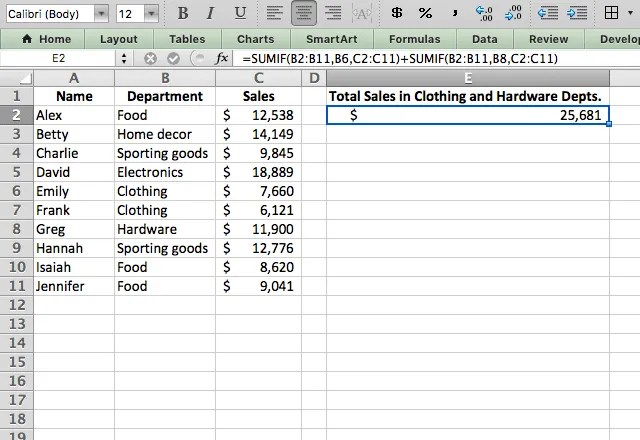
Q: Does SUMIF support OR conditions (e.g., sum if A=1 OR A=2)?
No, SUMIF evaluates a single criterion. For OR logic, use:
- Array formula (legacy): `{=SUM(IF(A:A=1, B:B, 0)) + SUM(IF(A:A=2, B:B, 0))}` (press Ctrl+Shift+Enter in older Excel).
- SUMIFS with helper column: Add a column flagging OR conditions, then sum based on it.
- SUMPRODUCT: `SUMPRODUCT((A:A=1)+(A:A=2), B:B)` (treats TRUE as 1).
Leave a Comment
Comments are moderated before appearing. The data you submit is processed according to the Privacy Policy of Viralcontentbee.