The Definitive Guide to Setting Up Dual Boot in 2024
The decision to run multiple operating systems on a single machine isn’t just about nostalgia for Windows XP or curiosity about Linux distributions. It’s a pragmatic solution for developers, cybersecurity professionals, and power users who need specialized tools without the overhead of virtualization. The process of how to set up dual boot has evolved from a niche hacker’s trick into a mainstream necessity, but its core remains unchanged: partitioning, bootloader management, and precise configuration. What separates the smooth experience from the frustrating one isn’t just the tools—it’s the understanding of how these systems coexist beneath the surface.
Consider the scenario: You’re a graphic designer relying on Windows for Adobe Suite but need Linux for open-source rendering tools. Or perhaps you’re a security researcher testing exploits in an isolated environment while maintaining a stable Windows setup. The answer lies in dual booting, where each OS operates independently yet harmoniously. The challenge? Most guides oversimplify the process, glossing over critical details like UEFI vs. BIOS modes, disk encryption, or handling legacy software. This guide cuts through the noise, addressing every variable—from hardware compatibility to post-installation optimizations—to ensure your dual boot setup is as reliable as it is flexible.
Even seasoned IT professionals encounter pitfalls: corrupted bootloaders after Windows updates, misaligned partitions, or forgotten BIOS settings that render one OS unbootable. The key to avoiding these issues lies in methodical preparation. Unlike traditional single-OS installations, how to set up dual boot demands foresight—allocating space before installation, verifying boot modes, and understanding the implications of secure boot policies. Skipping these steps often leads to time-consuming recovery procedures. This article provides a roadmap that accounts for these nuances, ensuring your dual-boot configuration is not just functional but future-proof.

The Complete Overview of How to Set Up Dual Boot
The foundation of any successful dual-boot system is understanding its architectural requirements. At its core, dual booting involves partitioning a storage drive to allocate space for each operating system, configuring a bootloader to manage OS selection, and ensuring hardware compatibility across both environments. The process begins with hardware assessment: modern systems with UEFI firmware and GPT partitioning offer greater flexibility than legacy BIOS setups with MBR partitions. However, the choice between UEFI and BIOS isn’t arbitrary—it dictates partition schemes, bootloader types (GRUB vs. Windows Boot Manager), and even driver support. For instance, Windows 11 mandates UEFI, while some Linux distributions default to BIOS compatibility modes, creating potential conflicts if not addressed early.
Beyond hardware, the software selection phase is equally critical. Not all operating systems play well together: Windows and Linux can coexist seamlessly, but macOS dual booting introduces additional challenges due to Apple’s proprietary drivers and firmware restrictions. The installation sequence also matters—installing Windows first is generally recommended because its installer overwrites the bootloader, whereas Linux installers (like Ubuntu’s) are designed to detect and preserve existing OS installations. This order minimizes the risk of data loss and ensures the bootloader remains intact. However, the real complexity arises during the post-installation phase, where users must configure GRUB or Windows Boot Manager to recognize both OSes, adjust partition permissions, and troubleshoot boot failures—a process that often requires command-line intervention.
Historical Background and Evolution
The concept of dual booting emerged in the late 1990s as users sought to leverage the strengths of multiple operating systems on a single machine. Early implementations were rudimentary, relying on manual bootloader edits or third-party tools like BootIt NG. The advent of Linux distributions in the 2000s democratized the process, with GRUB (GRand Unified Bootloader) becoming the de facto standard for managing multiple OSes. Meanwhile, Windows evolved from its DOS-based roots to a UEFI-compatible system, forcing dual-boot configurations to adapt to new firmware standards. The shift from MBR to GPT partitioning in the 2010s further complicated matters, as GPT’s lack of a dedicated boot partition required innovative workarounds, such as using ESP (EFI System Partition) for UEFI bootloaders.
Table of Contents
- The Complete Overview of How to Set Up Dual Boot
- Historical Background and Evolution
- Core Mechanisms: How It Works
- Key Benefits and Crucial Impact
- Major Advantages
- Comparative Analysis
- Future Trends and Innovations
- Conclusion
- Comprehensive FAQs
- Q: Can I dual boot Windows 11 and Linux on the same SSD without performance loss?
- Q: What’s the best way to back up my dual-boot system before making changes?
- Q: Why does my dual-boot menu disappear after a Windows update?
- Q: Is it possible to dual boot macOS and Linux on non-Apple hardware?
- Q: How do I handle encrypted partitions in a dual-boot setup?
- Q: What’s the safest way to remove an OS from a dual-boot system?
- Q: Can I dual boot Windows and Linux on a laptop with UEFI Secure Boot enabled?
- Q: How do I switch between UEFI and BIOS modes for dual booting?
- Q: What’s the best partition scheme for a dual-boot setup with multiple drives?
- Q: How do I troubleshoot "No boot device found" errors in dual boot?
Today, the process of setting up dual boot is more streamlined but no less technical. Modern tools like Ventoy or Rufus simplify the creation of bootable USB drives, while distributions like Fedora and Arch Linux offer refined installers that automate partition detection and bootloader configuration. However, the underlying principles remain unchanged: partitioning, bootloader management, and hardware compatibility. The evolution of dual booting reflects broader trends in computing—from the decline of single-vendor ecosystems to the rise of open-source flexibility. For users, this means greater control but also increased responsibility in managing a multi-OS environment.
Core Mechanisms: How It Works
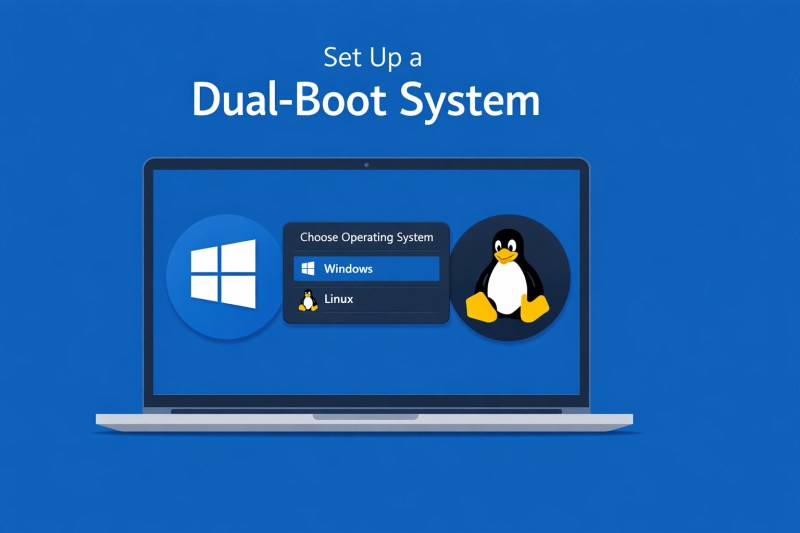
The technical backbone of dual booting lies in three interconnected components: disk partitioning, bootloader functionality, and OS-specific boot environments. When you partition a drive for dual booting, you’re essentially creating separate storage zones where each OS can install its kernel, drivers, and applications without interfering with the other. The bootloader—whether GRUB, Windows Boot Manager, or a third-party solution like rEFInd—acts as the traffic controller, presenting users with a menu to select their desired OS at startup. This menu is generated by scanning the disk for valid boot records, a process that can fail if partitions are misaligned or boot flags are missing.
The boot process itself is a sequence of firmware-level checks followed by OS-specific initialization. On UEFI systems, the firmware locates the bootloader in the ESP, loads it into memory, and hands control to the selected OS. In BIOS mode, the bootloader is embedded in the MBR or a dedicated boot partition. The complexity arises when mixing UEFI and BIOS modes: Windows installed in UEFI mode cannot natively boot Linux installed in BIOS mode, and vice versa. This incompatibility often requires manual intervention, such as converting partitions or adjusting bootloader settings. Understanding these mechanics is essential for troubleshooting issues like "boot device not found" errors or infinite reboot loops, which typically stem from mismatched firmware modes or corrupted boot entries.
Key Benefits and Crucial Impact
Dual booting isn’t merely a technical exercise—it’s a productivity multiplier for users with diverse computing needs. By maintaining separate environments, developers can test software in isolated conditions without risking their primary OS, while designers can switch between Windows and Linux without rebooting into a virtual machine. The performance benefits are equally significant: native execution of OS-specific applications eliminates the overhead of emulation, and hardware acceleration (e.g., GPU rendering) is fully utilized in each environment. For cybersecurity professionals, dual booting provides a sandbox for vulnerability research, with the ability to reset the test environment by simply rebooting into the primary OS.
The psychological impact is often underestimated. Many users report a renewed appreciation for their hardware when dual booting, as they gain deeper control over their computing experience. The ability to customize each OS independently—whether for performance tuning, aesthetic preferences, or software compatibility—fosters a sense of ownership that single-OS setups cannot match. However, the benefits come with trade-offs: managing two operating systems requires discipline, and the learning curve can be steep for beginners. The key is to approach dual booting as a long-term investment in flexibility, not a quick fix for compatibility issues.
"Dual booting is the digital equivalent of having two tools in your toolbox—each perfect for its purpose, and neither getting in the way of the other."
— Linus Torvalds, Creator of Linux
Major Advantages
- Hardware Optimization: Each OS can utilize hardware drivers tailored to its architecture, avoiding compatibility layers that degrade performance (e.g., Windows Subsystem for Linux vs. native Linux execution).
- Isolation and Security: Sensitive tasks (e.g., cryptocurrency mining, exploit testing) can be contained within one OS, reducing the attack surface of the primary system.
- Software Flexibility: Access to niche applications or legacy software that isn’t available on modern OS versions (e.g., running Windows 7 for vintage games or drivers).
- Learning and Experimentation: Safe environment to explore new distributions or configurations without risking the primary OS.
- Cost Efficiency: Eliminates the need for multiple machines or expensive virtualization licenses while maximizing hardware utilization.
Comparative Analysis
| Aspect | Windows + Linux Dual Boot | macOS + Windows Dual Boot |
|---|---|---|
| Hardware Compatibility | High (UEFI/GPT widely supported; Linux handles diverse hardware better than Windows). | Moderate (macOS requires Apple hardware or Hackintosh setup; Windows drivers may conflict). |
Bootloader Complexity
| Moderate (GRUB is robust but requires manual configuration for advanced setups). |
High (rEFInd or Clover recommended; macOS Recovery may overwrite boot entries). |
|
Performance Impact
| Minimal (native execution; shared storage may slow down frequent switches). |
Significant (macOS’s APFS filesystem can cause issues with Windows; Hackintosh adds instability). |
|
Recovery Options
| Straightforward (Windows Repair or Linux Live USB can fix most issues). |
Complex (macOS Recovery may not detect Windows; requires third-party tools like rEFInd). |
|
Future Trends and Innovations
The future of dual booting is being shaped by two opposing forces: the push toward unified ecosystems (e.g., Windows Subsystem for Linux) and the enduring demand for isolation. As cloud computing reduces the need for local OS diversity, dual booting may seem like a relic of the past. However, the rise of edge computing and IoT devices—where lightweight, specialized OSes are deployed—suggests that dual booting will persist in niche applications. Innovations like how to set up dual boot with containerized environments (e.g., running Linux containers on Windows) blur the lines between virtualization and native dual booting, offering a middle ground for users who want flexibility without complexity.
On the hardware front, advancements in NVMe storage and faster SSDs are reducing the performance overhead of dual booting, making it more viable for mainstream users. Meanwhile, projects like Coreboot and open-source firmware initiatives aim to eliminate vendor lock-in, potentially simplifying dual-boot setups on non-Apple hardware. The key trend to watch is the convergence of bootloader technologies: tools like systemd-boot (used in Arch Linux) and Windows’s native boot manager are becoming more interoperable, reducing the need for third-party solutions like GRUB. For power users, this means fewer configuration headaches and more focus on customization.

Conclusion
Setting up a dual-boot system is more than a technical feat—it’s a statement of intent. It signals a rejection of artificial constraints, a desire to harness the full potential of hardware, and a commitment to learning beyond the limitations of a single operating system. The process of how to set up dual boot remains rigorous, but the rewards—performance, flexibility, and control—are unmatched. As technology evolves, the methods may change, but the core principles will endure: careful planning, precise execution, and an understanding of the underlying mechanics.
For beginners, the journey may seem daunting, but the resources and community support available today make it more accessible than ever. Start with a clear goal—whether it’s testing Linux distributions, running legacy software, or optimizing workflows—and let that guide your setup. Remember that dual booting is a dynamic process: as your needs evolve, so too can your configuration. The key is to treat it as a living system, not a static installation. With the right approach, your dual-boot setup will be as reliable as it is powerful.
Comprehensive FAQs
Q: Can I dual boot Windows 11 and Linux on the same SSD without performance loss?
A: Yes, but with caveats. Modern NVMe SSDs handle frequent read/write operations well, but performance may degrade slightly due to shared storage. To mitigate this, use separate partitions for each OS and avoid installing heavy applications on the shared space. Additionally, enable TRIM for both OSes to maintain SSD longevity.
Q: What’s the best way to back up my dual-boot system before making changes?
A: Use a combination of tools: create a full disk image with dd or Clonezilla for the entire drive, and export critical data (documents, configurations) separately. For Linux, tools like Timeshift can snapshot system files, while Windows offers File History or Macrium Reflect for incremental backups. Always test the backup by restoring it to a secondary drive.
Q: Why does my dual-boot menu disappear after a Windows update?
A: Windows updates often overwrite the bootloader (Windows Boot Manager) with a generic configuration that doesn’t recognize other OSes. To fix this, boot into a Linux Live USB, reinstall GRUB using grub-install, and update the GRUB configuration to detect Windows. Alternatively, use bcdedit in Windows to manually add the Linux entry.
Q: Is it possible to dual boot macOS and Linux on non-Apple hardware?
A: Yes, but it requires a Hackintosh setup (installing macOS on non-Apple hardware) and careful driver configuration. Tools like OpenCore or Clover manage the boot process, but stability depends on hardware compatibility. Linux can then be installed alongside macOS using rEFInd as the bootloader. Note that this setup is unsupported by Apple and may void warranties.
Q: How do I handle encrypted partitions in a dual-boot setup?
A: Encryption adds complexity because each OS may use different encryption standards (e.g., BitLocker for Windows, LUKS for Linux). Ensure the bootloader (GRUB or Windows Boot Manager) is installed on an unencrypted partition (like ESP). For full-disk encryption, use tools like cryptsetup (Linux) or BitLocker (Windows) with pre-boot authentication. Avoid encrypting the EFI partition, as this can prevent booting.
Q: What’s the safest way to remove an OS from a dual-boot system?
A: Start by backing up critical data. For Windows, use the built-in "Reset this PC" option to clean the partition, then resize the remaining partition to reclaim space. For Linux, use gparted to delete the partition and extend others. Always verify the bootloader (GRUB) still detects the remaining OS after deletion. If issues arise, boot into a Live USB and reinstall the bootloader.
Q: Can I dual boot Windows and Linux on a laptop with UEFI Secure Boot enabled?
A: Yes, but you’ll need to configure Secure Boot to allow both OSes. In Linux, sign the kernel and bootloader with a key (e.g., using sbverify and sbset tools). Windows typically handles Secure Boot automatically, but you may need to disable it temporarily during Linux installation. Ensure your Linux distribution provides Secure Boot-compatible packages (e.g., Fedora, Ubuntu with signed kernels).
Q: How do I switch between UEFI and BIOS modes for dual booting?
A: Switching modes requires reformatting the drive, as UEFI uses GPT and BIOS uses MBR. Backup all data, then use tools like gdisk (GPT) or fdisk (MBR) to repartition. Reinstall both OSes in the new mode, as bootloaders are mode-specific. Note that some hardware may not support both modes simultaneously, especially on newer systems.
Q: What’s the best partition scheme for a dual-boot setup with multiple drives?
A: For optimal performance and flexibility, use separate drives for each OS (e.g., one SSD for Windows, another for Linux). If using a single drive, allocate a dedicated partition for the bootloader (ESP for UEFI) and separate partitions for each OS’s root (/ or C:) and home/data. Avoid shared partitions unless absolutely necessary, as they can complicate updates and backups.
Q: How do I troubleshoot "No boot device found" errors in dual boot?
A: This error typically indicates the bootloader can’t locate the OS. Start by ensuring the drive is set as bootable in the BIOS/UEFI. For UEFI systems, verify the ESP is mounted and contains the bootloader files. If using GRUB, reinstall it with grub-install /dev/sdX (replace sdX with your drive). For Windows, use bootrec /fixmbr and bootrec /fixboot in the recovery environment. Check disk health with smartctl or manufacturer tools.
Leave a Comment
Comments are moderated before appearing. The data you submit is processed according to the Privacy Policy of Viralcontentbee.