Mastering the Bash Script: The Powerhouse of Command-Line Automation
The terminal isn’t just a relic of old-school computing—it’s the backbone of modern infrastructure. Behind every automated deployment, log analysis, or system cleanup lies a bash script, a concise yet powerful tool that turns repetitive tasks into executable logic. Unlike high-level languages, a well-crafted bash script operates at the speed of the system itself, interfacing directly with the kernel without unnecessary abstraction.
Yet for many, the bash script remains an enigma. Its syntax is terse, its quirks unforgiving, and its potential often overlooked in favor of GUI-driven solutions. But beneath its deceptively simple shebang line (`#!/bin/bash`) lies a language capable of orchestrating entire workflows—whether you’re managing servers, parsing data, or automating DevOps pipelines. The key isn’t memorizing every obscure flag; it’s understanding how to wield its core mechanisms to solve real problems.
Consider this: a single bash script can replace dozens of manual commands, reduce human error, and integrate seamlessly with other tools like Python, Docker, or Kubernetes. The difference between a clunky, error-prone process and a streamlined, scalable operation often hinges on whether someone took the time to write—and debug—a bash script. The question isn’t if you’ll use one, but how effectively.

The Complete Overview of Bash Scripting
A bash script is more than a sequence of commands; it’s a programmable interface to the Unix philosophy. At its heart, it’s a text file containing instructions for the Bash shell, which interprets them line by line. What sets it apart is its ability to handle variables, loops, conditionals, and even external programs—all while running in a fraction of the time it takes to click through a GUI. This efficiency is why sysadmins, developers, and data engineers rely on bash scripts for everything from backups to CI/CD pipelines.
The language itself is a dialect of the Bourne shell, refined over decades to balance simplicity with functionality. Unlike Python or JavaScript, Bash doesn’t require compilation; it executes commands dynamically, making it ideal for quick iterations. However, this flexibility comes with trade-offs: performance isn’t its strongest suit for CPU-intensive tasks, and its string manipulation capabilities are rudimentary compared to dedicated languages. Yet, for automation—where speed of execution and ease of deployment matter most—a bash script is often the optimal choice.
Historical Background and Evolution
The origins of bash script trace back to the 1970s, when Ken Thompson and Dennis Ritchie created the Unix shell. Early shells like Bourne Shell (sh) laid the groundwork, but it wasn’t until 1989 that Brian Fox introduced Bash (Bourne-Again SHell) as part of the GNU Project. Fox’s goal was to retain backward compatibility while adding features like command-line editing, job control, and arrays—innovations that would define modern bash script capabilities.
Table of Contents
- The Complete Overview of Bash Scripting
- Historical Background and Evolution
- Core Mechanisms: How It Works
- Key Benefits and Crucial Impact
- Major Advantages
- Comparative Analysis
- Future Trends and Innovations
- Conclusion
- Comprehensive FAQs
- Q: Can a bash script interact with databases like MySQL or PostgreSQL?
- Q: How do I debug a bash script that isn’t working?
- Your script here
- Q: Are there security risks when using bash scripts ?
- Q: Can I write a bash script to monitor system performance?
- Q: What’s the difference between `source` and `./script.sh`?
By the 1990s, Bash became the default shell for Linux distributions, cementing its role in system administration. The rise of open-source software and the need for reproducible workflows further propelled its adoption. Today, bash script is the de facto standard for automation in Unix-like environments, with extensions like `bash`’s here-documents and process substitution pushing its boundaries. Even modern tools like Docker and Ansible rely on bash scripts under the hood, proving its enduring relevance.
Core Mechanisms: How It Works
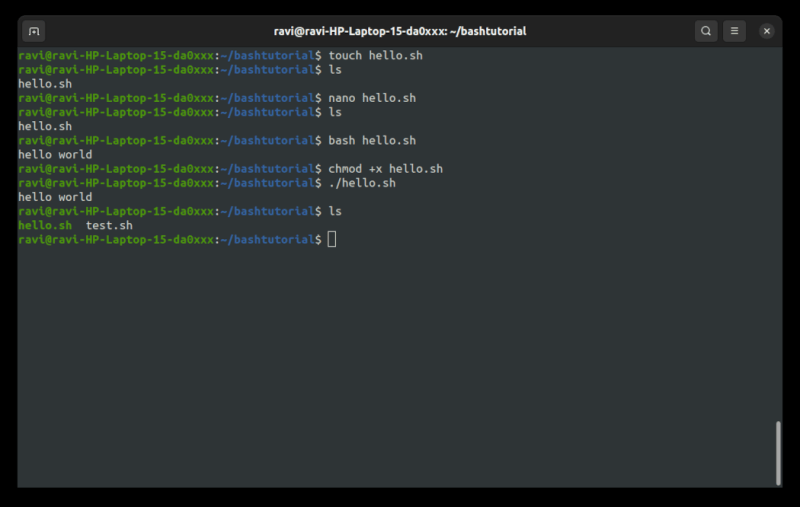
Understanding a bash script begins with its execution model. When you run a script (e.g., `./script.sh`), the shebang (`#!/bin/bash`) tells the system to invoke the Bash interpreter. The script then executes line by line, with each command processed in sequence unless altered by control structures like `if`, `for`, or `while`. Variables are dynamically assigned (e.g., `var="value"`), and commands can accept input via `$1`, `$2`, etc., for positional arguments.
The real power lies in Bash’s ability to chain commands using pipes (`|`), redirect I/O (`>`, `>>`, `<`), and handle errors (`&&`, `||`). For example, `grep "error" logfile.txt | awk '{print $1}'` filters and processes data in a single pipeline. Additionally, Bash supports functions (defined with `myfunc() { ... }`), allowing code reuse without external files. This modularity, combined with its integration with external tools (e.g., `curl`, `awk`, `sed`), makes bash scripts a Swiss Army knife for automation.
Key Benefits and Crucial Impact
Automation isn’t just about saving time—it’s about eliminating variability. A well-written bash script ensures consistency across environments, whether deploying code, monitoring logs, or cleaning up temporary files. Unlike manual processes, which are prone to human error, scripts enforce repeatability. This reliability is critical in production, where a misplaced semicolon or unquoted variable could cascade into system failures.
The impact extends beyond technical efficiency. Bash scripts democratize access to complex tasks. A junior developer can automate a backup process with a 10-line script, while a senior engineer can orchestrate a multi-node Kubernetes cluster using Bash for pre-flight checks. The language’s ubiquity means it’s the lowest common denominator for collaboration across teams, regardless of their preferred programming languages.
"Bash isn’t just a tool; it’s the invisible glue that holds modern infrastructure together. The best engineers don’t just write scripts—they design systems where scripts write themselves."
—Linus Torvalds (paraphrased, emphasizing Bash’s role in Linux development)
Major Advantages
- Instant Execution: No compilation step means scripts run as soon as they’re written, ideal for rapid prototyping.
- Cross-Platform Compatibility: Works on Linux, macOS, and even Windows (via WSL or Git Bash), making it a universal choice.
- Integration with Unix Tools: Seamlessly pipes data between `awk`, `sed`, `curl`, and other CLI utilities.
- Minimal Overhead: Lightweight compared to interpreted languages like Python, with faster startup times.
- Scriptability of Complex Workflows: Handles everything from file operations to network requests, reducing the need for multiple tools.
Comparative Analysis
| Feature | Bash Script | Python Script |
|---|---|---|
| Execution Speed | Fast for simple tasks; slower for CPU-heavy operations. | Slower startup but efficient for complex logic. |
| Ease of Use | Steep learning curve for advanced features (e.g., regex, arrays). | More intuitive syntax; better for beginners. |
| Use Case | System automation, CLI tools, DevOps pipelines. | Data analysis, web scraping, scripting with libraries. |
| Portability | Native to Unix-like systems; requires WSL on Windows. | Cross-platform with minimal dependencies. |
Future Trends and Innovations
The future of bash script lies in its evolution as a hybrid tool. While Bash itself may not change drastically, its integration with modern workflows is accelerating. For instance, tools like `zsh` and `fish` are gaining traction for their enhanced scripting capabilities, but Bash remains the standard due to its stability. Meanwhile, projects like ShellCheck are improving script quality with static analysis, reducing bugs before execution.
Another trend is the rise of "scriptable" infrastructure. Platforms like Terraform and Ansible use bash scripts as part of their provisioning workflows, blurring the line between automation and orchestration. As containerization grows, Bash’s role in Dockerfiles and CI/CD scripts (e.g., GitHub Actions) will only expand. The challenge? Balancing Bash’s simplicity with the need for more robust error handling and type safety—areas where languages like Go or Rust excel. Yet, for the foreseeable future, the bash script will remain the go-to for tasks where speed and direct system access matter most.

Conclusion
A bash script is more than a collection of commands—it’s a testament to the Unix philosophy: "Do one thing and do it well." Whether you’re automating a daily backup, debugging a misconfigured service, or orchestrating a cloud deployment, Bash provides the precision and control needed to get the job done. The barrier to entry is low, but mastery requires patience and practice.
Start small: write a script to rename files, parse a log, or deploy a static site. As your confidence grows, explore advanced topics like signal handling, debugging with `set -x`, or integrating Bash with APIs. The terminal isn’t going away, and neither is the bash script. The question is no longer whether you’ll use it—but how deeply you’ll harness its potential.
Comprehensive FAQs
Q: Can a bash script interact with databases like MySQL or PostgreSQL?
A: Yes, using tools like `mysql` (for MySQL) or `psql` (for PostgreSQL) within the script. For example:
```bash
#!/bin/bash
psql -U user -d db -c "SELECT FROM table;" > output.csv
```
This executes a SQL query and redirects the output to a file.
Q: How do I debug a bash script that isn’t working?
A: Use `set -x` at the top of the script to print each command before execution. For errors, check exit codes (`$?`) and use `trap` to catch signals. Example:
```bash
#!/bin/bash
set -x
trap 'echo "Error occurred"' ERR
Your script here
```Q: Are there security risks when using bash scripts?
A: Yes. Unquoted variables can lead to command injection (e.g., `rm $file` with `file="*; rm -rf /"`). Always quote variables (`"$file"`) and avoid running scripts as `root` unless necessary. Use `shellcheck` to scan for vulnerabilities.
Q: Can I write a bash script to monitor system performance?
A: Absolutely. Use tools like `top`, `htop`, or `vmstat` in combination with `awk` and `while` loops. Example:
```bash
#!/bin/bash
while true; do
cpu=$(top -bn1 | grep "Cpu(s)" | sed "s/., \([0-9.]\)% id.*/\1/" | awk '{print 100 - $1}')
echo "CPU Usage: $cpu%"
sleep 5
done
```
Q: What’s the difference between `source` and `./script.sh`?
A: `source script.sh` (or `. script.sh`) runs the script in the current shell, preserving variables and functions. `./script.sh` executes it in a subshell, losing context after completion. Use `source` for configuration files or when you need changes to persist.
Leave a Comment
Comments are moderated before appearing. The data you submit is processed according to the Privacy Policy of Viralcontentbee.